
M66 Header DB
Basic Overview #
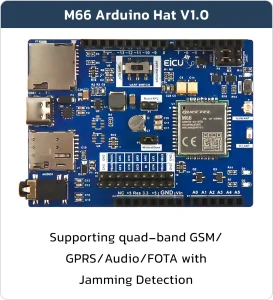
The M66 header DB (Development Board) is a compact and portable board designed specifically for Arduino. The main equipped modules are the M66 series wireless communication modules. The Development board has a USB Type-C interface, making it convenient for development. Developers only need a USB Type-C cable to easily use the Development board. Additionally, the Development board is compatible with the expansion board of Arduino, which can be directly used on the Development board.
Supported Module List #
- Arduino uno R3
- Arduino uno R3 SMD
- Arduino Zero
- Arduino Yun Rev2
- Arduino UNO Wi-Fi Rev2
- Arduino UNO R4 Wi-Fi
- Arduino uno R4 Minima
- Arduino Leonardo
Feature List #
Module Features:
- Quad-band: 850/900/1800/1900MHz
- AT Commands: GSM 07.07, 07.05 and Enhanced AT Commands
- TCP/UDP/HTTP/FTP/PPP
- Jamming Detection
- Audio
- FOTA
- OpenCPU
- QuecFastFix
Development Board Resources #
Function Description #
The main component and interface placement of the M66 Header DB is shown in the following figure:
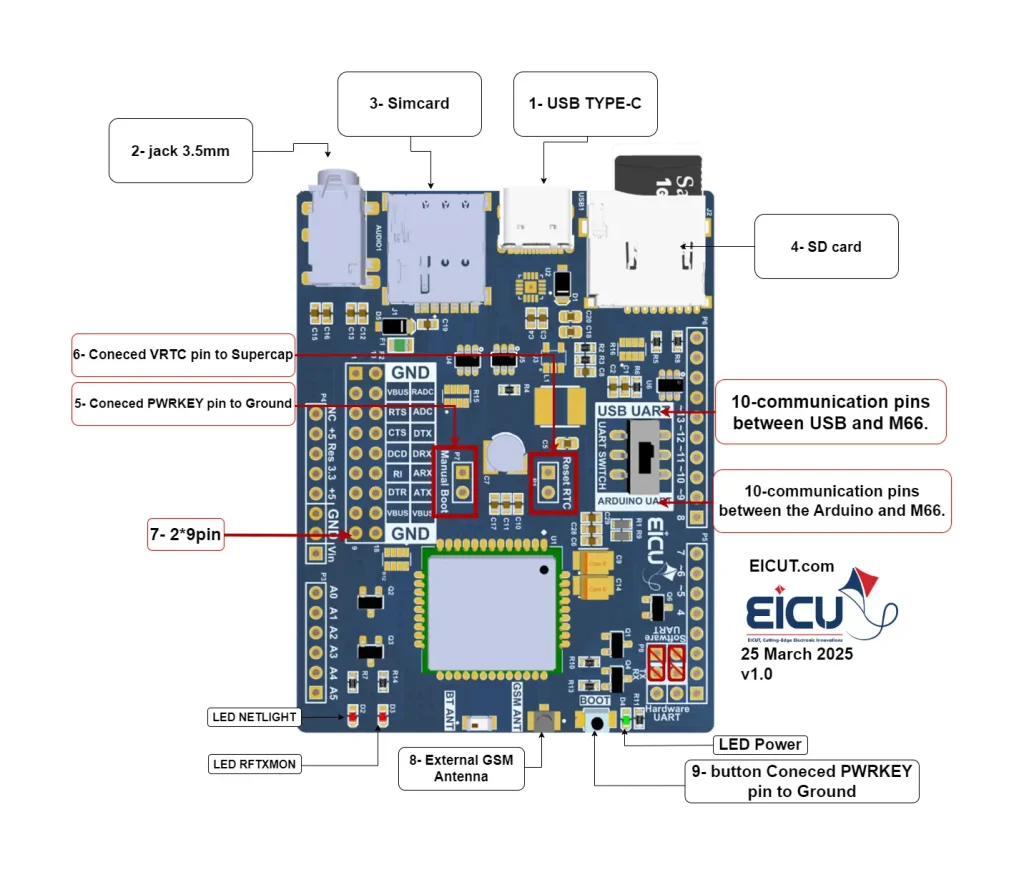
The detailed assignment of the peripheral interfaces on the M66 Header DB is as follows:
| NO. | Name | Silkscreen | Comment |
|---|---|---|---|
| 1 | USB Type-C Interface | – | – |
| 2 | Audio jack 3.5 mm | – | – |
| 3 | Sim card case | – | 4FF SIM Card 12.3 × 8 mm |
| 4 | SD card case | – | Micro SD Card |
| 5 | Manual boot | Manual Boot | If shorted, the micro will turn on. |
| 6 | Reset RTC | Reset RTC | If open, the RTC will reset. |
| 7 | 2*9pin | – | Header 2.54 mm |
| 8 | External GSM Antenna | GSM ANT | UFL Antenna |
| 9 | boot | BOOT | If pushed, connects PWRKEY pin to ground and turns on/off M66. |
| 10 | UART Switch | UART Arduino/USB | If the switch is on the Arduino UART side, communication between Arduino and M66 is established; if on the USB UART side, communication between USB and M66 is established. |
The M66 Header DB has 3 functional indication LEDs, as follows:
- D2: LED Connect NETLIGHT
- D3: LED Connect RFTXMON
- D4: Power indication LED
Board Interfaces #
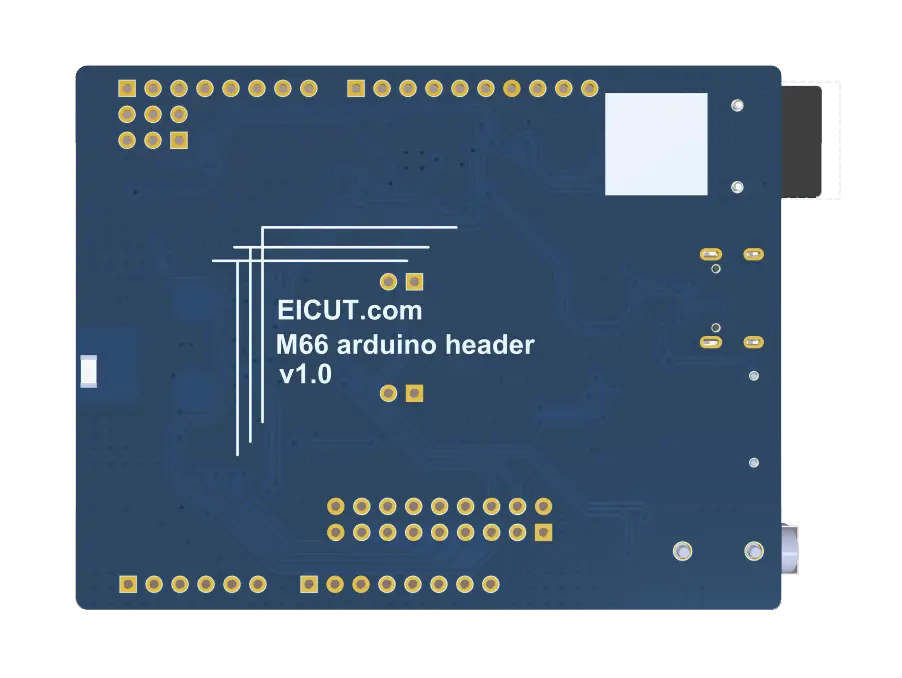
The main pin placement of the M66 Header DB is shown in the following figure:
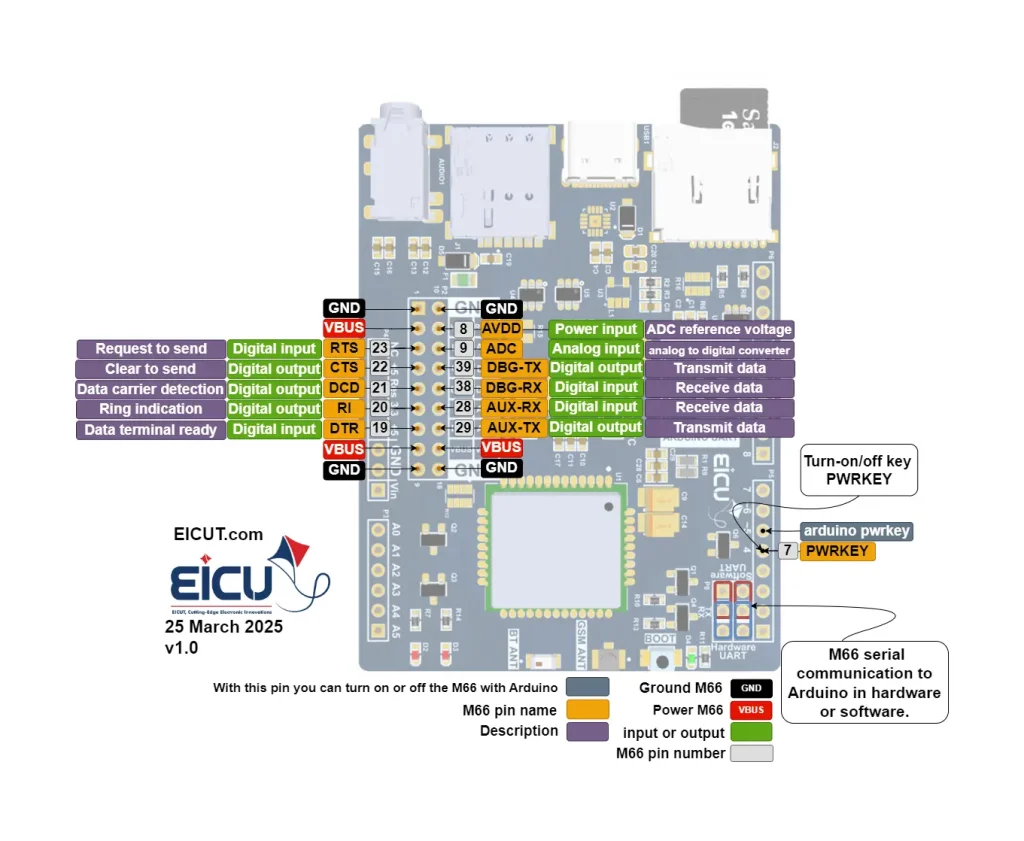
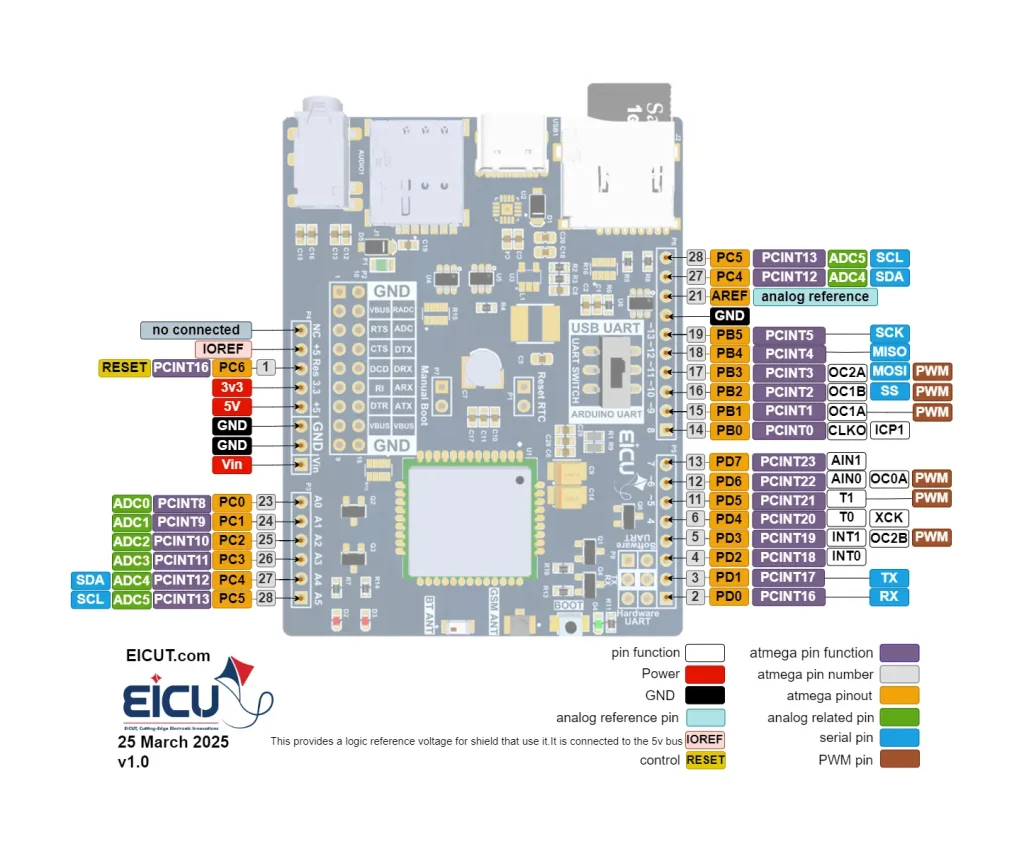
As shown in the image above, Arduino can communicate with the module in two ways: software UART and hardware UART.
Set the switch to Arduino UART mode and connect with a jumper depending on your needs.
Important: Do not use the Arduino power supply to power the M66 board directly. Instead, you can safely connect the VBUS pin of the M66 module to the 5V pin of Arduino with a jumper. The ground (GND) is already shared and does not need an additional connection.
Power Header
| NO. | Name | Silkscreen | Comment |
|---|---|---|---|
| 8-Pin | NC | NC | – |
| 8-Pin | IOREF | IOREF | This provides a logic reference voltage for Arduino shields that use it; it is connected to the 5 V bus. |
| 8-Pin | RST | RST | Reset Arduino |
| 8-Pin | 3v3 | 3v3 | 3.3 V Arduino regulator; don’t connect to power the module. |
| 8-Pin | 5v | 5v | 5 V Arduino regulator; don’t connect to power the module. |
| 8-Pin | GND | GND | Ground |
| 8-Pin | GND | GND | Ground |
| 8-Pin | Vin | Vin | This pin is used to power the Arduino Uno using an external power source. The voltage should be within the supported range. |
ADC Header
| NO. | Name | Silkscreen | Comment |
|---|---|---|---|
| 6-Pin | ADC0 | A0 | Analog input (ADC). |
| 6-Pin | ADC1 | A1 | The Arduino Uno has 6 analog pins which utilize an ADC (Analog-to-Digital Converter). |
| 6-Pin | ADC2 | A2 | These pins serve as analog inputs and can also function as digital inputs or outputs. |
| 6-Pin | ADC3 | A3 | These pins serve as analog inputs and can also function as digital inputs or outputs. |
| 6-Pin | ADC4 | A4 | These pins serve as analog inputs and can also function as digital inputs or outputs. |
| 6-Pin | ADC5 | A5 | These pins serve as analog inputs and can also function as digital inputs or outputs. |
Digital Header
| NO. | Name | Silkscreen | Comment |
|---|---|---|---|
| 18-Pin | PD0/TX | 0 | Serial |
| 18-Pin | PD1/RX | 1 | Communication |
| 18-Pin | PD2 | 2 | — |
| 18-Pin | PD3/PWM | 3 | — |
| 18-Pin | PD4 | 4 | — |
| 18-Pin | PD5/PWM | 5 | — |
| 18-Pin | PD6/PWM | 6 | — |
| 18-Pin | PD7 | 7 | — |
| 18-Pin | PB0 | 8 | — |
| 18-Pin | PB1/PWM | 9 | — |
| 18-Pin | PB2/PWM/SS | 10 | — |
| 18-Pin | PB3/PWM/MOSI | 11 | SPI |
| 18-Pin | PB4/MISO | 12 | Communication |
| 18-Pin | PB5/SCK | 13 | — |
| 18-Pin | Ground | GND | — |
| 18-Pin | AREF | AREF | — |
| 18-Pin | PC4/SDA | SDA | I2C |
| 18-Pin | PC5/SCL | SCL | Communication |
M66 Header 2*9
| NO. | Name | Silkscreen | Comment |
|---|---|---|---|
| 2*9-Pin | Ground | GND | – |
| 2*9-Pin | Ground | GND | – |
| 2*9-Pin | VBUS | VBUS | This pin is powered by USB. |
| 2*9-Pin | ADC reference voltage | AVDD | Vmax=2.9 V, Vmin=2.7 V, Vnorm=2.8 V |
| 2*9-Pin | Request to send | RTS | Digital input |
| 2*9-Pin | Analog to Digital Converter | ADC | Analog input |
| 2*9-Pin | Clear to send | CTS | Digital output |
| 2*9-Pin | Transmit data | DBG-TX | Digital output |
| 2*9-Pin | Data carrier detection | DCD | Digital output |
| 2*9-Pin | Receive data | DBG-RX | Digital input |
| 2*9-Pin | Ring indication | RI | Digital output |
| 2*9-Pin | Receive data | AUX-RX | Digital input |
| 2*9-Pin | Data terminal ready | DTR | Digital input |
| 2*9-Pin | Transmit data | AUX-TX | Digital output |
| 2*9-Pin | VBUS | VBUS | This pin is powered by USB. |
| 2*9-Pin | VBUS | VBUS | This pin is powered by USB. |
| 2*9-Pin | Ground | GND | – |
| 2*9-Pin | Ground | GND | – |
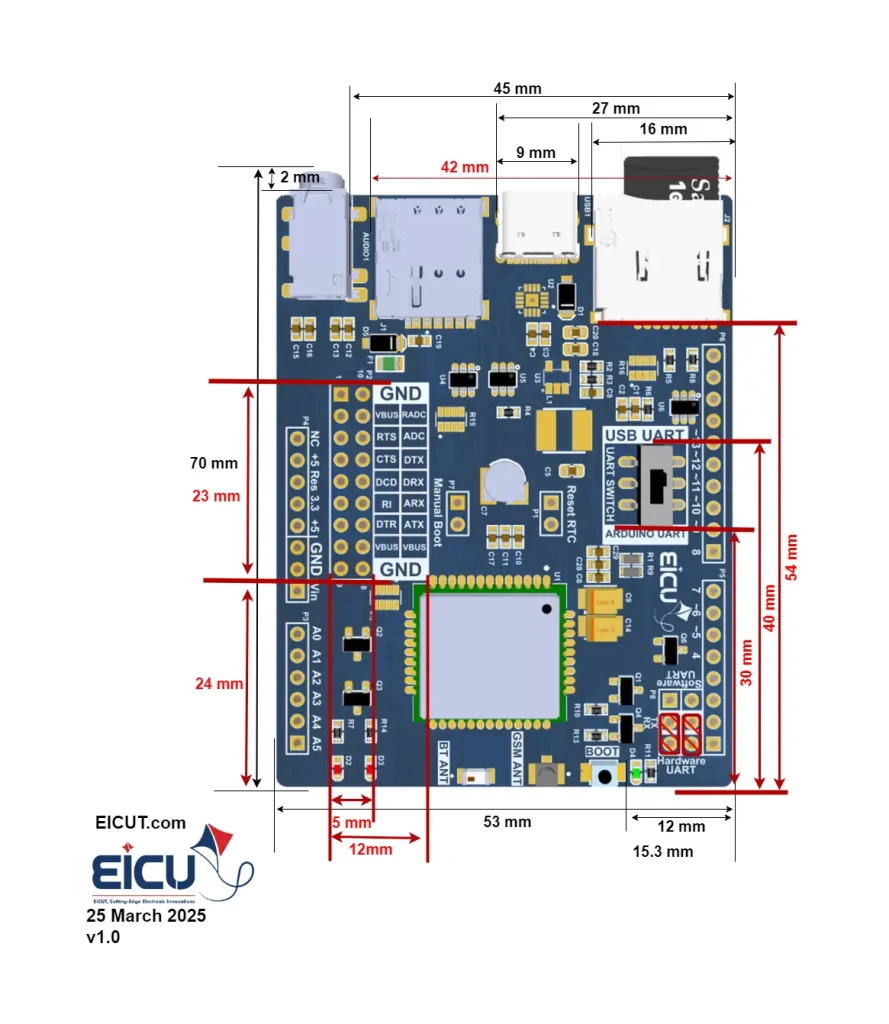
Development Board Dimensions #
Getting Started Preparation #
Step 1: Connect the Development Board
Connect the Development board to the computer’s USB port using a USB Type-C cable for power supply.
Step 2: Turn on the Development board
Long press the PWRKEY button to turn on the board. Before pressing the PWRKEY button, make sure the power supply voltage is stable. It is recommended to have a time interval of not less than 30 ms between powering up and pressing the PWRKEY button. If you want the board to power up and turn on automatically without the need for a turn-off function, you can directly short the two pins with PWK_AUTO silkscreen on the 2-Pin (Manual Boot) header.
Step 3: Install the 343p IC driver from the link below.
Step 4: Don’t forget that when you want to connect the module to the computer, the switch mode is on USB UART.
Step 5: In the next step, install the Qnavigator software from the link below.
Step 6: After installing the software, follow the software instructions and select your board in the port section, set the baud rate to 115200, and click Connect.
Resource Download #
FAQ #