

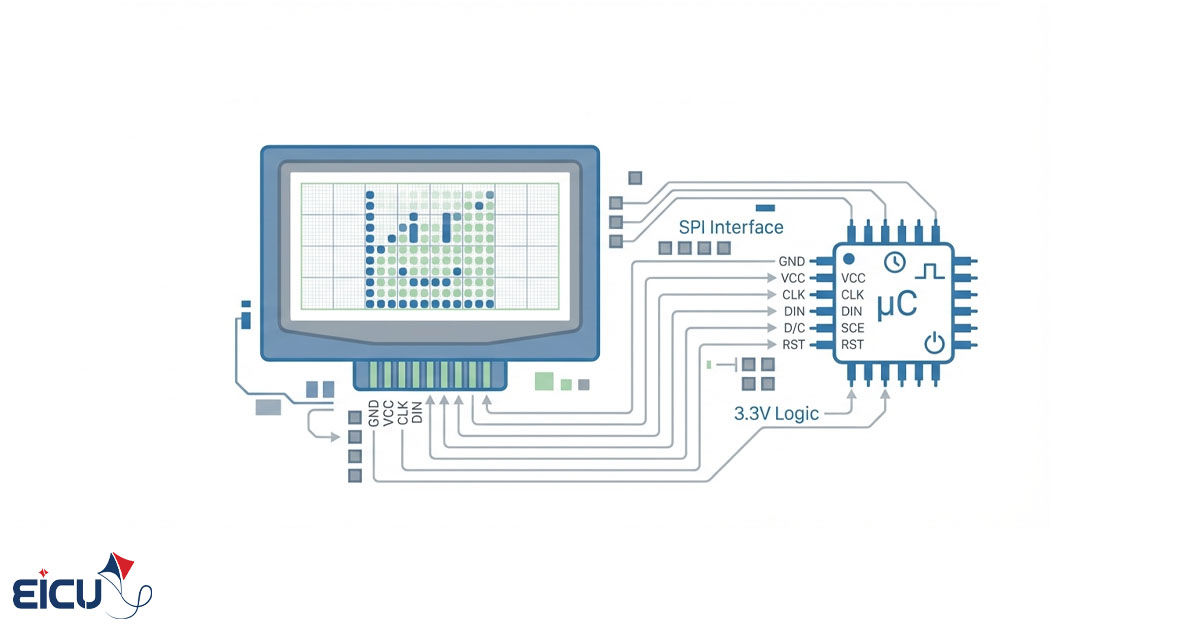
Setting up Nokia 1661 Graphic LCD Leave a comment
The Affordable Solution
The trick is to use displays that are produced in huge volumes for the consumer market (not specialized industrial displays). These screens are abundant, widely available, and most importantly — very inexpensive.
A perfect example is old mobile phone displays. They are easily found in mobile spare-parts shops and cost only a fraction of regular graphical LCDs.
In this article, we’re going to use one of the best and cheapest options : the Nokia 1661 LCD.
Introducing the Graphical LCD
Most graphical LCDs sold in the electronics market are monochrome pixel-type (they can only turn each pixel on or off). Color graphical LCDs are usually very expensive because, besides the display itself, you also need to buy a separate controller IC.
Mobile phone LCDs solve both problems at once:
- They are full-color (65K colors) TFT
- The driver/controller is already built into the display
- You only need to send commands and data — no external driver IC required!
Today we will drive the Nokia 1661 LCD:
- Type: TFT, 65K colors
- Size: 1.8 inches
- Resolution: 128 × 160 pixels (~114 ppi)
If for any reason you can’t find the exact Nokia 1661 model, the following phones use exactly the same LCD (same driver, same commands, same 12-pin connector):
- Nokia 1661 / 1616 / 1662 / 1800 / 5030 / 100 / 101 / 112 / 113
- Nokia C1-00 / C1-01 / C1-02 / C1-03 / C2-00 / X1-01
The following older Nokia models use the same LCD but with a 22-pin connector (DF23-22). Only the pinout is different — all driving commands and timing are identical:
- Nokia 5070 / 5200 / 6060 / 6061 / 6070 / 6080 / 6085 / 6086
- Nokia 6101 / 6102 / 6103 / 6125 / 6136 / 6151 / 7360
Because these displays were used in millions of phones, they are very easy to source and will remain available for years.
Graphical LCD and Hardware Interface
All of the models listed above use the SPFD54124B controller (or a fully compatible clone).
Fortunately, this controller uses a serial interface, so we don’t need many pins to drive it. Unfortunately, it uses 9-bit serial protocol, which means we cannot directly use the standard 8-bit SPI hardware peripheral found in most AVR microcontrollers (though almost all ARM-based MCUs support 9-bit mode natively).
Another very important point: This LCD works only at 3.3 V (both power supply and logic levels). If you apply 5 V to any I/O pin, the built-in controller will be permanently damaged.
If your LCD has the 12-pin connector, the pinout is shown in the picture below:
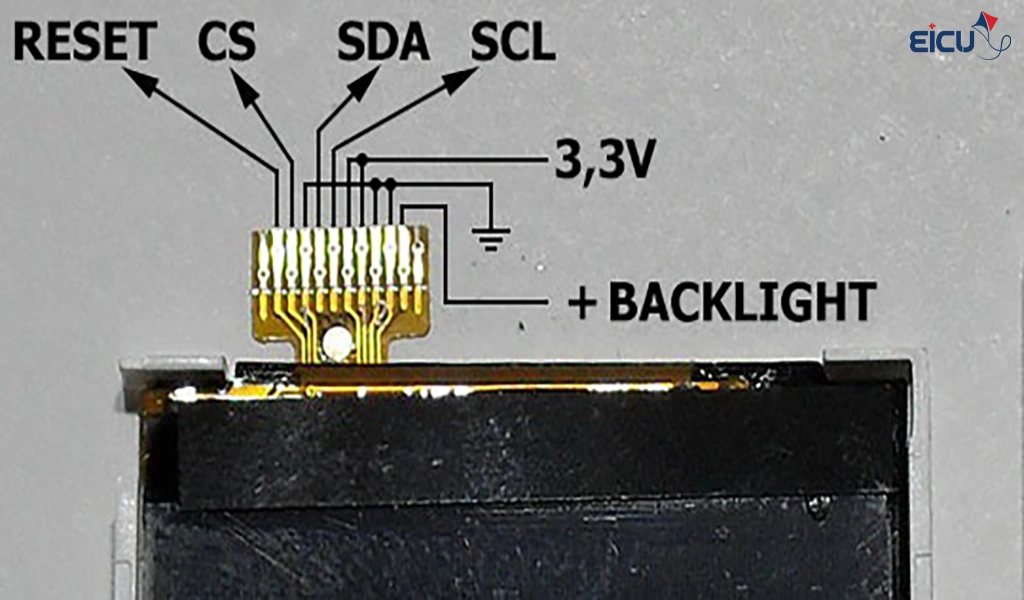
You can download the Altium library along with the driver board for this type of LCD from the end of this article.
If you are using a model with 22 pins, you can view the pin configuration in the image below.
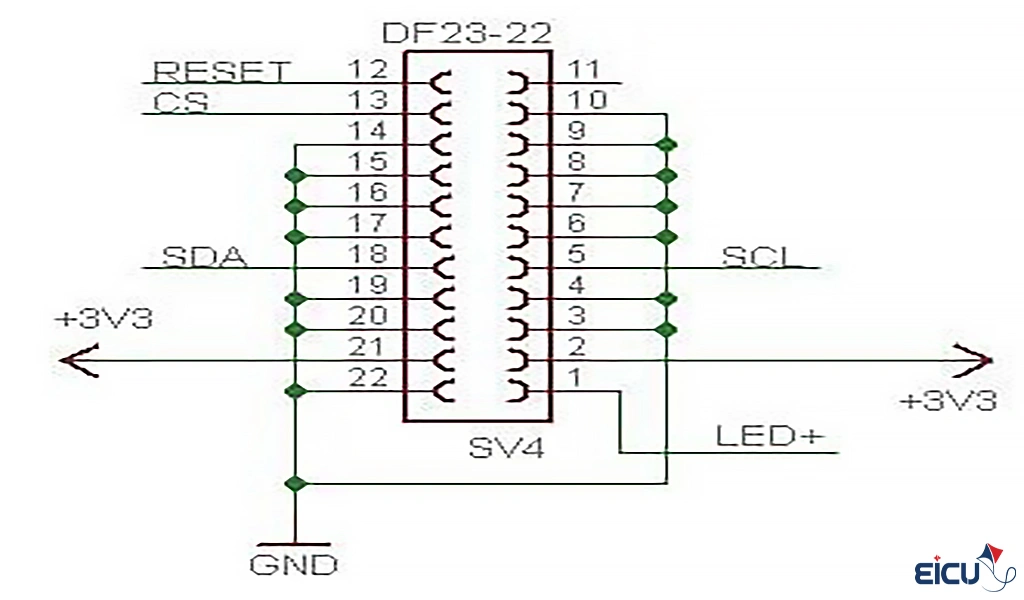
As shown in the two images above, aside from the power supply and backlight pins, this controller model requires four signal pins. As usual, one is for controller reset, one serves as the chip select (CS) signal, one is the clock (CLK), and the other is the data input (DATA).
The labels SDA and SCL are not related to the I²C interface; they are simply abbreviations for Serial Data and Serial Clock, respectively.
Sample module
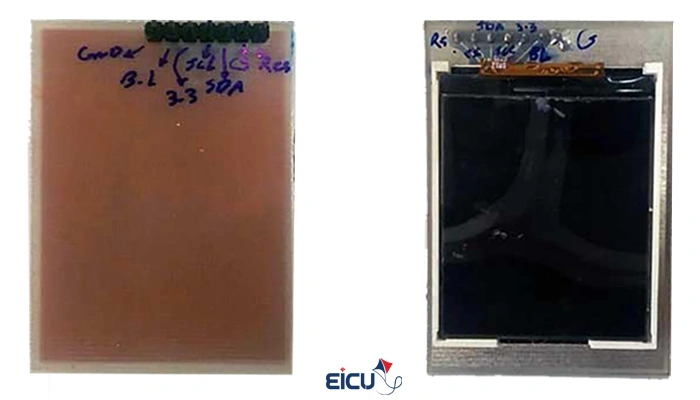
The display used in this setup is the Nokia 1661 mobile LCD, whose front and back views are shown in the image below.
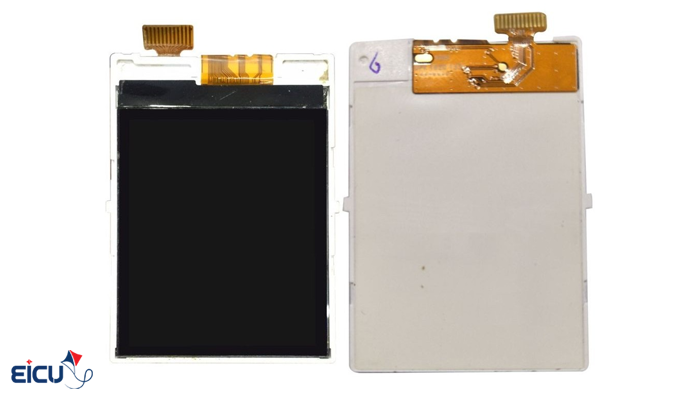
Please note that this type of LCD has 12 pins.
To make access to the LCD pins easier, Eicut has designed a driver board, and you can download its PCB file from the Downloads section on our website.
Downloading and Setting Up the Graphical LCD Library
To download the library, visit Eicut’s website and get the project named Nokia‑1616‑1661‑TFT‑Library, or simply click the download link provided in the Downloads section. After obtaining the latest version of the library, the first step is to configure the pins used to initialize the LCD. To do this, edit the following lines in the nokia1661_Hw.h file.
You may freely assign any available pins on your microcontroller:
|
1 2 3 4 5 6 7 |
#define LCD_PORT PORTB #define LCD_DDR DDRB #define LCD_RST PINB1 #define LCD_CS PINB2 #define LCD_SDA PINB3 #define LCD_CLK PINB5 |
Keep in mind that this library supports both AVR and STM32 microcontrollers.
To specify which one you are using, edit the same header file (nokia1661_Hw.h) and modify the macro definitions accordingly.
For example, to select an AVR microcontroller, set them as follows:
|
1 2 |
#define LCD_AVR_HW 1 //#define LCD_STM_HW 1 |
This library is compatible with GCC, Keil, and IAR compilers, and it can be easily integrated with HAL, LL, or SPL libraries.
In summary:
- Download: from Eicut website → Nokia‑1616‑1661‑TFT‑Library
- Edit hardware header: nokia1661_Hw.h
- Configure pins and MCU type
- Supported environments: GCC / Keil / IAR
- Supported frameworks: HAL / LL / SPL
This setup ensures smooth operation of your graphical Nokia 1616/1661 LCD across different microcontroller platforms.
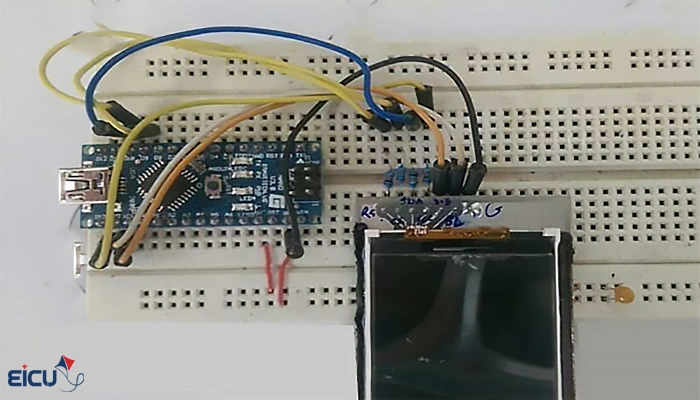
After configuring the hardware pins and connecting the LCD module to the microcontroller, initialization and operation are very simple:
you just need to call the nlcdInit() routine to configure the LCD controller and start using it.
Default Example Program for Library Initialization and Testing
|
1 2 3 4 5 6 7 8 9 10 11 12 13 14 15 16 17 18 19 20 21 22 23 24 25 26 27 28 29 30 31 32 33 34 35 36 37 38 39 40 41 42 43 44 45 46 47 48 49 50 51 52 53 54 55 56 57 58 59 60 61 |
#include <avr/io.h> #include <util/delay.h> #include <nokia1661_lcd_driver.h> #include <lcd_font5x7.h> int main(void) { nlcdInit(); nlcdSetBackgroundColor(LCD_VGA_RED); nlcdClear(); nlcdSetBackgroundColor(LCD_VGA_BLUE); nlcdClear(); nlcdSetBackgroundColor(LCD_VGA_GREEN); nlcdClear(); nlcdSetBackgroundColor(LCD_VGA_WHITE); nlcdSetFont(font5x7latcyr); nlcdClear(); nlcdGotoCharXY(1,1); nlcdStringP(LCD_VGA_RED, PSTR("Eicut.Com")); _delay_ms(250); nlcdSetOrientation(LCD_ORIENTATION_90); nlcdGotoCharXY(1,1); nlcdStringP(LCD_VGA_GREEN, PSTR("Eicut.Com")); _delay_ms(250); nlcdSetOrientation(LCD_ORIENTATION_180); nlcdGotoCharXY(1,1); nlcdStringP(LCD_VGA_BLUE, PSTR("Eicut.Com")); _delay_ms(250); nlcdSetOrientation(LCD_ORIENTATION_270); nlcdGotoCharXY(1,1); nlcdStringP(LCD_VGA_PURPLE, PSTR("Eicut.Com")); _delay_ms(250); nlcdSetOrientation(LCD_ORIENTATION_NORMAL); for(int i=0;i<32;i++) nlcdPixel(64+i,64,LCD_VGA_RED); for(int i=0;i<32;i++) nlcdPixel(64,64+i,LCD_VGA_PURPLE); for(int i=0;i<32;i++) nlcdPixel(64+i,64+31,LCD_VGA_BLUE); for(int i=0;i<32;i++) nlcdPixel(64+31,64+i,LCD_VGA_GREEN); while(1) { } return 0; } |
Explanation
- nlcdInit() → Initializes the LCD controller and prepares it for use.
- nlcdSetBackgroundColor() and nlcdClear() → Change and clear the display background.
- nlcdSetFont() → Selects a display font for text rendering.
- nlcdStringP() → Writes text to the LCD using specific color and position.
- nlcdSetOrientation() → Rotates the display between 0°, 90°, 180°, and 270°, offering flexible viewing angles.
- nlcdPixel() → Draws individual pixels to form colored shapes or patterns.
Program Output:
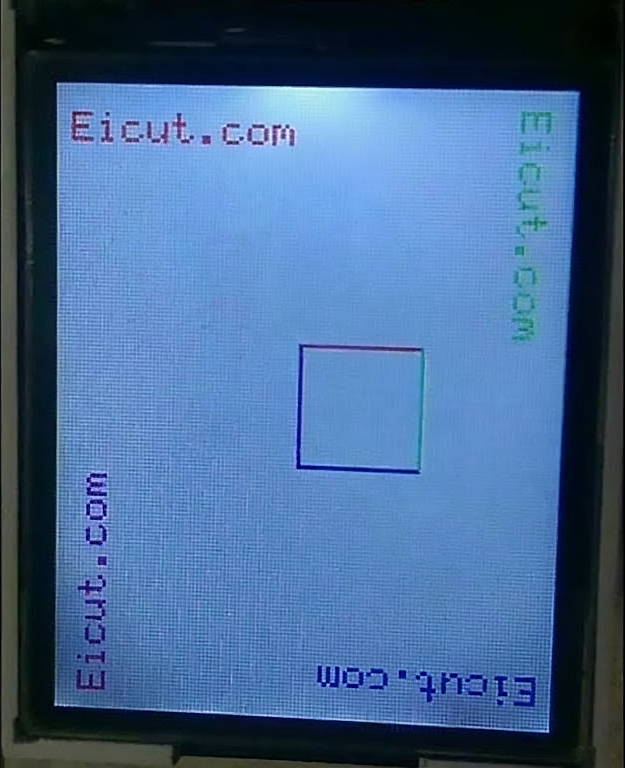
The result of the above code—showing different orientations drawing elements—can be seen in the image below, demonstrating successful initialization and basic operation of the Nokia 1661 graphical LCD.
Library Version 2 Update
In the new version of the library, a function for reading the LCD controller registers has been added.
Using this function, you can easily read the LCD ID and status registers.
Function Prototype
|
1 |
void _nlcdRead(uint8_t Reg, uint8_t *Readbuffer, uint8_t NRead); |
Parameters
- Reg – The address of the register you want to read.
- Readbuffer – A pointer to the memory location where the received data should be stored.
- NRead – The number of bytes to read from the LCD controller.
Example: Reading the LCD ID Register
The following example shows how to read the Display ID register from the LCD using the _nlcdRead() function:
|
1 2 |
uint8_t ReadID[3] = {0}; _nlcdRead(0x04, ReadID, 3); /* Read Display ID */ |
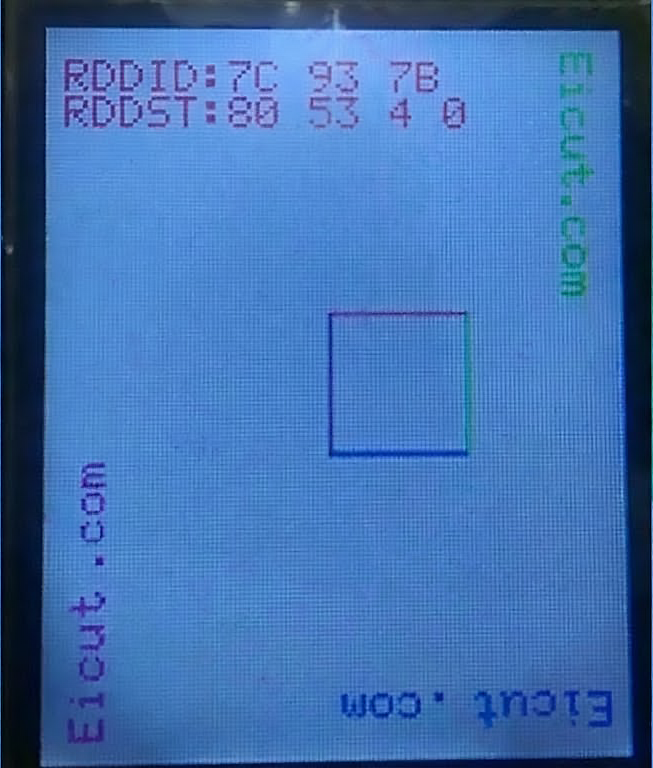
This code reads three bytes from the register at address 0x04, typically assigned to the LCD ID register, and stores them in the array ReadID.
Summary:
- The new _nlcdRead() function enhances the library by adding direct register access capability.
- It’s useful for diagnostics, LCD identification, and status monitoring.
- Works seamlessly with the existing Nokia‑1616/1661 TFT driver functions.
Keep in mind that this library supports both AVR and STM32 microcontrollers.
Click to Download the library with Arduino examples Nokia1661
Click to Download EICUT Nokia 1616 1661-TFT Library Master
Now Library Nokia-1616-1661 Support STM32Fxxx microcontrollers.
you can use This library in GCC/Keil/IAR with HAL/LL or SPL
for select and set MCUs type and pinout you can edit the nokia1661_Hw.h file with uncomment the LCD_AVR_HW or LCD_STM_HW macro
Click to Download STM32Fxxx Files
Add _nlcdRead Function
Read RDDID & RDDST And Show On LCD
Click to Download Hex Files For Arduino Nano
