

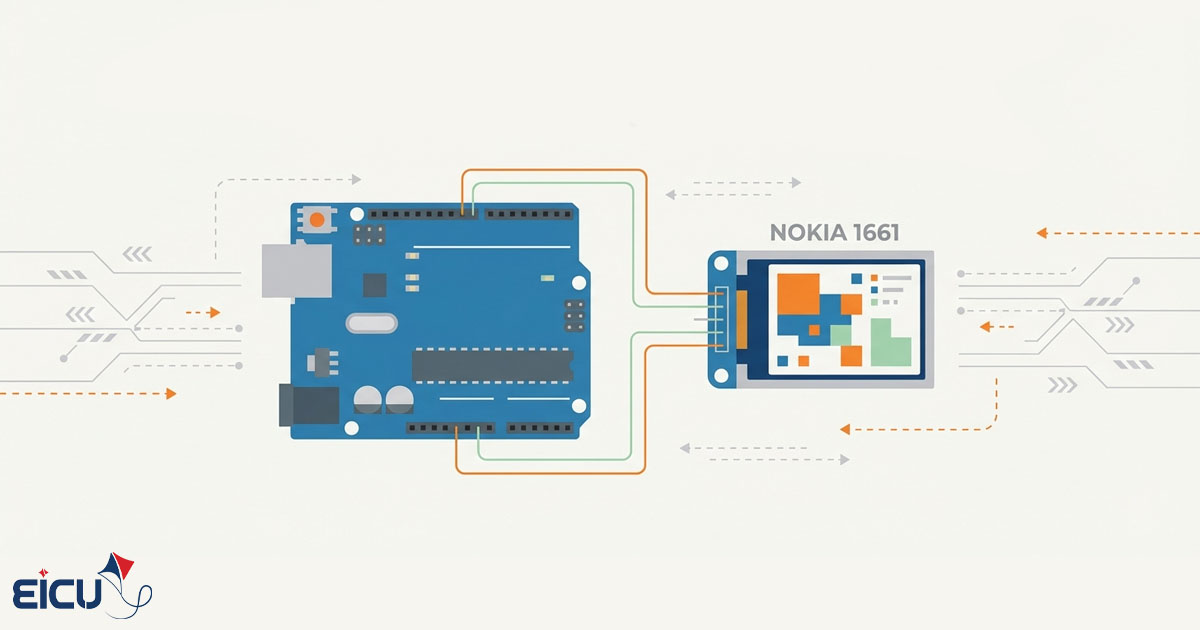
Setting up Cheap Color Display with Arduino (Nokia 1661) Leave a comment
Hardware
The display we’re using is originally designed for Nokia mobile phones, and because it’s mass‑produced, it’s very affordable. This display is found in phones like Nokia 1661, Nokia 1616, and etc.To obtain the display itself, you’ll need to visit mobile parts vendors, not typical electronics stores.
In this tutorial, we’re using a ready‑made module of this display, which you can purchase from Store.
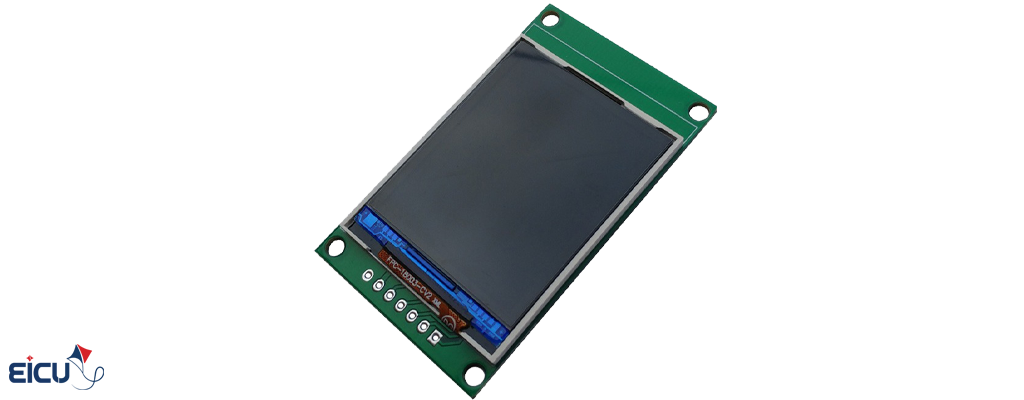
With this module, you can easily and effortlessly set up the display on your board.
You can review the features of this display below:
- Supports 65,000 colors
- 1.8‑inch size
- 128 × 160 resolution
Setting Up the Adafruit spfd54124b Library
In fact, spfd54124b is the display driver, which directly controls the LCD.
This driver supports the 9‑bit SPI protocol, while — as you know — most microcontrollers only support 8‑bit SPI.
In this library, the SPI interface for AVR microcontrollers has been implemented in software and optimized for performance.
However, the popular ESP8266 module (the NodeMCU board) does support 9‑bit SPI, allowing you to display data on the LCD at high speed.
Next, we’ll review how to use this library.
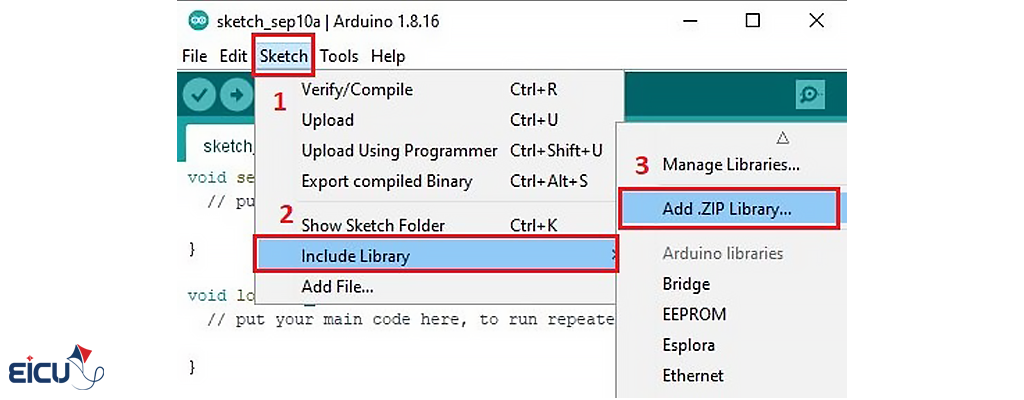
Now open the Arduino software, and from the menu go to
Sketch → Include Library → Add .ZIP Library,
then select the ZIP file you downloaded earlier.
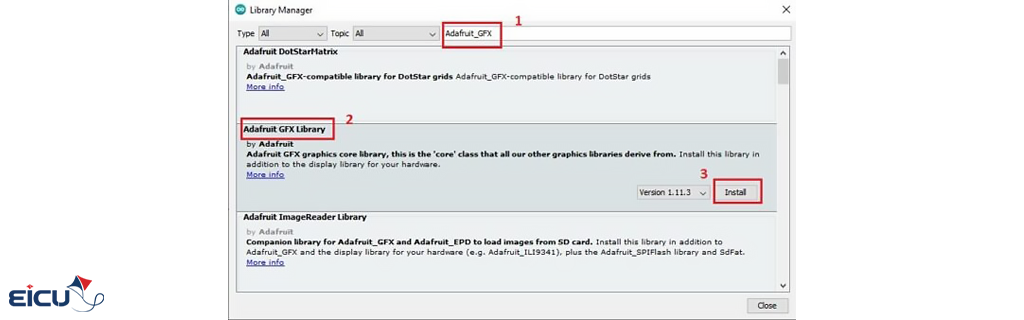
After that, you also need to install the Adafruit GFX library.
To do this, go to
Sketch → Include Library → Manage Libraries,
find and install the Adafruit GFX library.
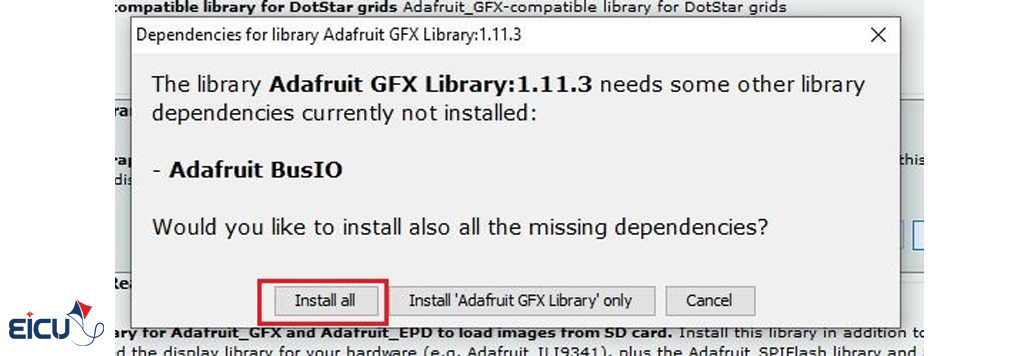
Now we want to test this library with the NodeMCU board.
To do this, simply open the corresponding example from the library.
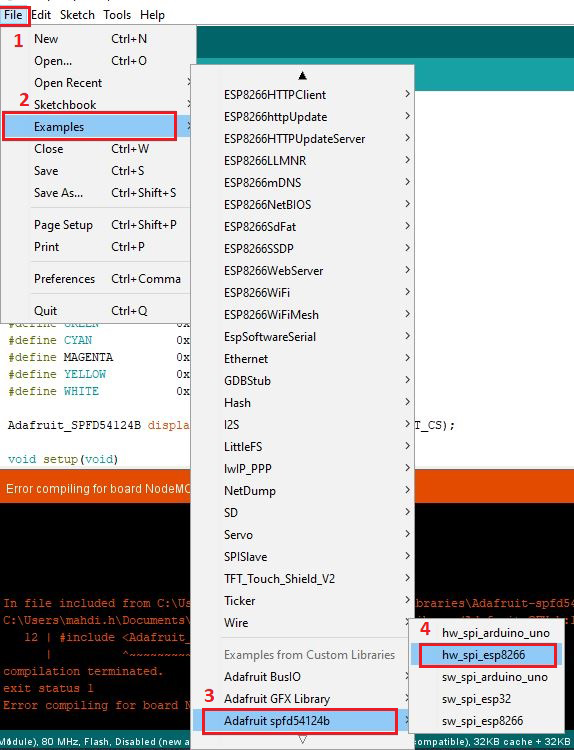
As you can see, there are several ready‑made examples for working with the library:
- hw_spi_arduino_uno: Setup using hardware SPI with the Arduino Uno board
- hw_spi_esp8266: Setup using hardware SPI with the NodeMCU (ESP8266) board
- sw_spi_arduino_uno: Setup using software SPI with the Arduino Uno board
- sw_spi_esp32: Setup using software SPI with the ESP32 board
- sw_spi_esp8266: Setup using software SPI with the NodeMCU (ESP8266) board
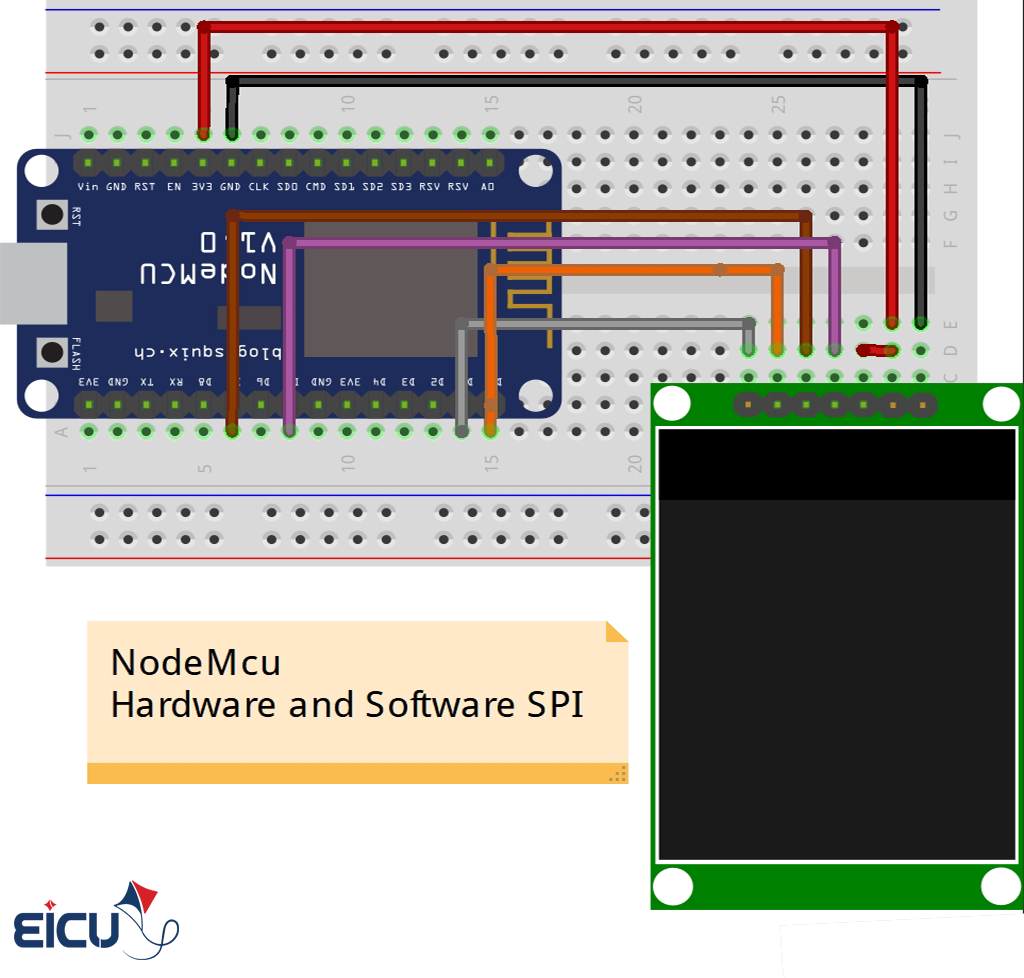
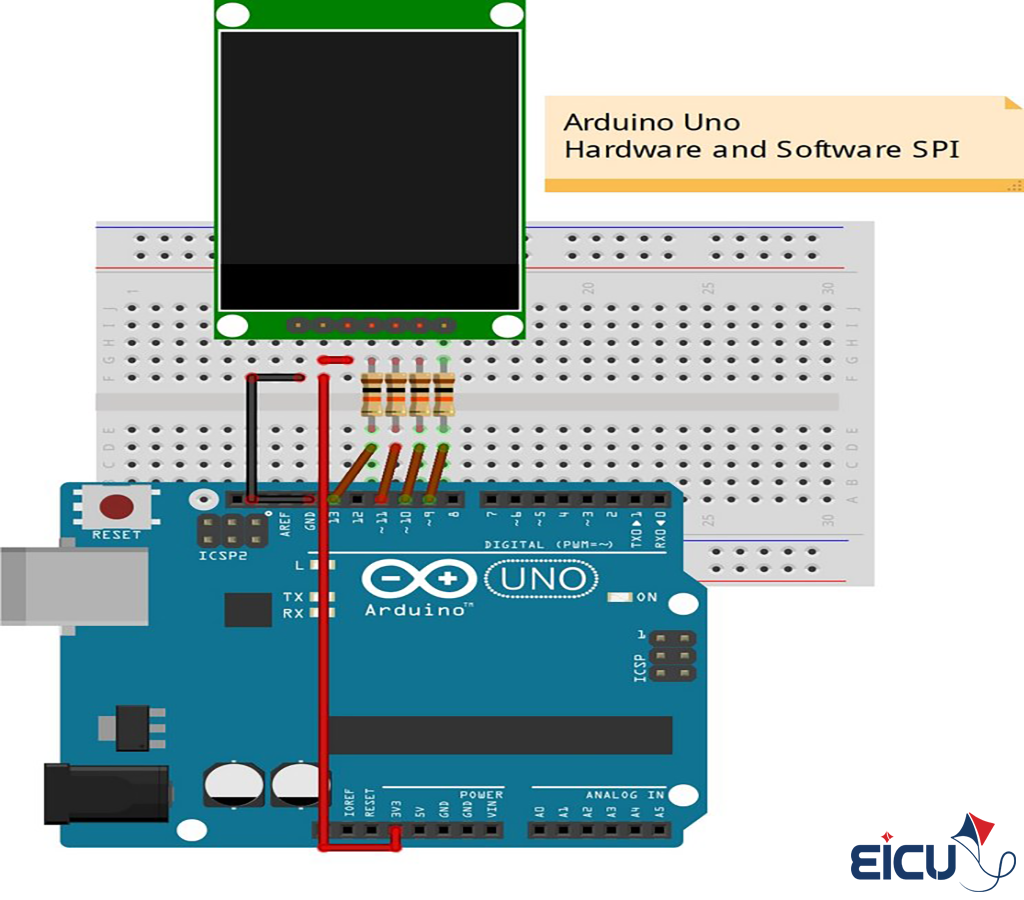
Next, you can see the schematic diagrams corresponding to each example.
|
1 2 3 4 5 6 7 8 9 10 11 12 13 14 15 16 17 18 19 20 21 22 23 24 25 26 27 28 29 30 31 32 33 34 35 36 37 38 39 40 41 42 43 44 45 46 47 48 49 50 51 52 53 |
#include <Adafruit_GFX.h> #include <Adafruit_SPFD54124B.h> #include <Fonts/FreeSerif9pt7b.h> #include <Fonts/FreeSansBoldOblique24pt7b.h> #define TFT_CS D0 #define TFT_RESET D1 #define BLACK 0x0000 #define BLUE 0x001F #define RED 0xF800 #define GREEN 0x07E0 #define CYAN 0x07FF #define MAGENTA 0xF81F #define YELLOW 0xFFE0 #define WHITE 0xFFFF Adafruit_SPFD54124B display(TFT_RESET, TFT_CS); void setup(void) { display.begin(); Serial.begin(115200); display.setRotation(1); unsigned long time; time = millis(); display.fillScreen(WHITE); display.fillScreen(BLACK); Serial.println(millis() - time); display.fillRect(100, 10, 20, 20, CYAN); display.setTextColor(WHITE); display.setCursor(5, 30); display.setFont(); display.print("Hello World"); display.setTextColor(BLUE); display.setCursor(5, 50); display.setFont(&FreeSerif9pt7b); display.print("Hello World"); display.setTextColor(YELLOW); display.setCursor(5, 110); display.setFont(&FreeSansBoldOblique24pt7b); display.print("Hello"); } void loop() {} |
To initialize the display in hardware SPI mode, you only need to define the RST and CS pins as follows:
|
1 |
Adafruit_SPFD54124B display(TFT_RESET, TFT_CS); |
If you’re using software SPI, then all SPI pins must be specified:
|
1 |
Adafruit_SPFD54124B display(TFT_DATA, TFT_CLK, TFT_RESET, TFT_CS); |
When using software SPI on the ESP8266, you cannot use pin 16 (D0 on NodeMCU) for TFT_CLK or TFT_DATA.
Below, you can see the output result of the code above.
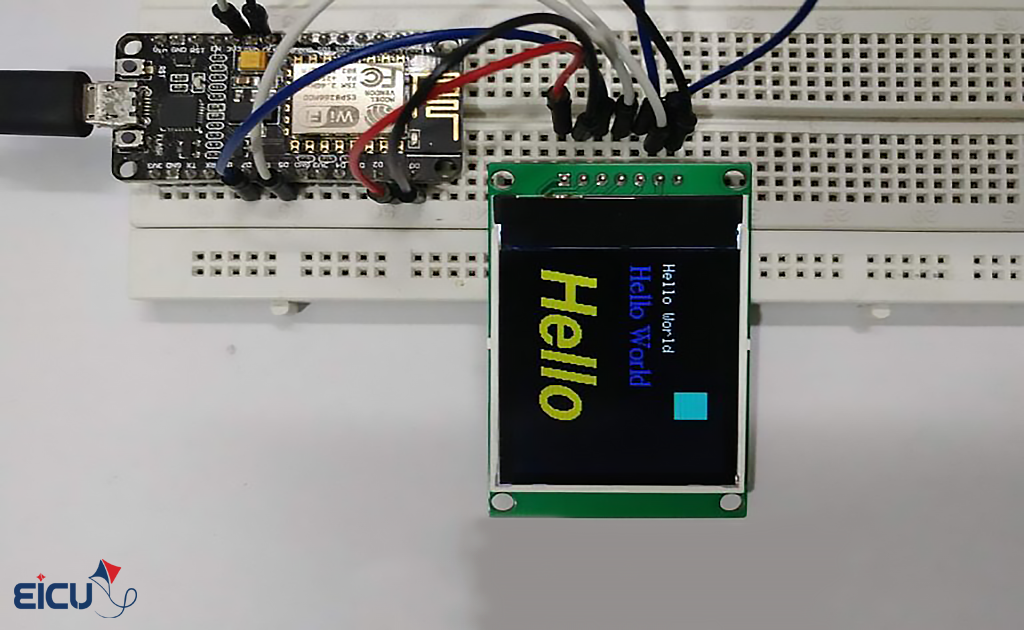
Color Display Setup
Available Drawing Functions for the Display
You can use all the functions from the Adafruit GFX library with this LCD.
Below are a few examples:
Screen Rotation
This function sets the drawing orientation on the display surface.
You can assign a value from 0 to 3:
|
1 |
void setRotation(uint8_t r); |
Draw a Pixel
This function draws a single pixel at the specified (x, y) coordinates with the chosen color:
|
1 |
void drawPixel(uint16_t x, uint16_t y, uint16_t color); |
Draw a Line
This function draws a line by specifying its starting and ending points, and a color:
|
1 |
void drawLine(uint16_t x0, uint16_t y0, uint16_t x1, uint16_t y1, uint16_t color); |

Draw a Rectangle
These functions are used to draw outlined or filled rectangles at specified (x, y) coordinates, with the desired width, height, and color:
|
1 2 3 |
void drawRect(uint16_t x0, uint16_t y0, uint16_t w, uint16_t h, uint16_t color); void fillRect(uint16_t x0, uint16_t y0, uint16_t w, uint16_t h, uint16_t color); |

Draw a Circle
These functions are used to draw a circle at a specified (x, y) center point with a chosen radius and color:
|
1 2 3 |
void drawCircle(uint16_t x0, uint16_t y0, uint16_t r, uint16_t color); void fillCircle(uint16_t x0, uint16_t y0, uint16_t r, uint16_t color); |

Draw a Rounded Rectangle
These functions are used to draw rectangles with rounded corners, either outlined or filled.
You need to specify the starting (x, y) coordinates, width, height, corner radius, and color:
|
1 2 3 |
void drawRoundRect(uint16_t x0, uint16_t y0, uint16_t w, uint16_t h, uint16_t radius, uint16_t color); void fillRoundRect(uint16_t x0, uint16_t y0, uint16_t w, uint16_t h, uint16_t radius, uint16_t color); |

Draw a Triangle
These functions are used to draw triangles, either outlined or filled, by specifying the three corner coordinates and a color:
|
1 2 3 4 5 6 7 8 9 |
void drawTriangle(uint16_t x0, uint16_t y0, uint16_t x1, uint16_t y1, uint16_t x2, uint16_t y2, uint16_t color); void fillTriangle(uint16_t x0, uint16_t y0, uint16_t x1, uint16_t y1, uint16_t x2, uint16_t y2, uint16_t color); |

Draw a Character
This function displays a single character at specified (x, y) coordinates, with chosen text color, background color, and font size:
|
1 2 3 |
void drawChar(uint16_t x, uint16_t y, char c, uint16_t color, uint16_t bg, uint8_t size); |

Text Handling
These functions are used for text rendering and formatting — positioning, coloring, sizing, and wrapping:
|
1 2 3 4 5 6 7 8 9 |
void setCursor(int16_t x0, int16_t y0); void setTextColor(uint16_t color); void setTextColor(uint16_t color, uint16_t backgroundcolor); void setTextSize(uint8_t size); void setTextWrap(boolean w); |
To select a specific font, use:
|
1 |
display.setFont(&yourFont); |
Available Fonts
Here is the list of available fonts you can include:
|
1 2 3 4 5 6 7 8 9 10 11 12 13 14 15 16 17 18 19 20 21 22 23 24 |
FreeMono12pt7b.h FreeSansBoldOblique12pt7b.h FreeMono18pt7b.h FreeSansBoldOblique18pt7b.h FreeMono24pt7b.h FreeSansBoldOblique24pt7b.h FreeMono9pt7b.h FreeSansBoldOblique9pt7b.h FreeMonoBold12pt7b.h FreeSansOblique12pt7b.h FreeMonoBold18pt7b.h FreeSansOblique18pt7b.h FreeMonoBold24pt7b.h FreeSansOblique24pt7b.h FreeMonoBold9pt7b.h FreeSansOblique9pt7b.h FreeMonoBoldOblique12pt7b.h FreeSerif12pt7b.h FreeMonoBoldOblique18pt7b.h FreeSerif18pt7b.h FreeMonoBoldOblique24pt7b.h FreeSerif24pt7b.h FreeMonoBoldOblique9pt7b.h FreeSerif9pt7b.h FreeMonoOblique12pt7b.h FreeSerifBold12pt7b.h FreeMonoOblique18pt7b.h FreeSerifBold18pt7b.h FreeMonoOblique24pt7b.h FreeSerifBold24pt7b.h FreeMonoOblique9pt7b.h FreeSerifBold9pt7b.h FreeSans12pt7b.h FreeSerifBoldItalic12pt7b.h FreeSans18pt7b.h FreeSerifBoldItalic18pt7b.h FreeSans24pt7b.h FreeSerifBoldItalic24pt7b.h FreeSans9pt7b.h FreeSerifBoldItalic9pt7b.h FreeSansBold12pt7b.h FreeSerifItalic12pt7b.h FreeSansBold18pt7b.h FreeSerifItalic18pt7b.h FreeSansBold24pt7b.h FreeSerifItalic24pt7b.h FreeSansBold9pt7b.h FreeSerifItalic9pt7b.h |

Using Fonts in the Adafruit SPFD54124B Library
Before using any font in your code, you must include it at the beginning of your sketch along with the required libraries.
Here’s an example:
|
1 2 3 4 |
#include <Adafruit_GFX.h> #include <Adafruit_SPFD54124B.h> #include <Fonts/FreeSerif9pt7b.h> #include <Fonts/FreeSansBoldOblique24pt7b.h> |
