

Affordable Antenna Testing with NTW6000 and RF Bridge Leave a comment
Everyone knows that real RF test equipment (especially a decent spectrum analyzer + VNA) costs an absolute fortune and for most IoT developers or small teams who don’t live and breathe RF every day, that’s simply not justifiable. And honestly, just one tool usually isn’t enough anyway.
So here’s the solution we actually use in real projects: a super cost-effective combo made of
- NTW6000 (inexpensive nanoVNA alternative)
- a simple RF bridge/directional coupler
- a few adapters and calibration kits
Total cost? A small fraction of a single professional spectrum analyzer.
In the rest of this article (and the upcoming parts), we’ll walk through:
- Introduction and specs of each component
- Step-by-step calibration process (SOL, SHORT, OPEN, LOAD, Through)
- How to measure return loss, VSWR, and Smith chart
- How to find the real resonant frequency of your antenna
- How to compare different antennas side-by-side objectively
- Practical tips and common pitfalls
You might be wondering: “Do I need a PhD in RF to follow this?”
Good news: No! Everything is explained in plain language, and every technical term is defined the first time it appears. That said, the more background knowledge you have, the deeper you’ll be able to analyze the results and understand why certain phenomena show up on the screen.
NTW6000 – First Look and Quick Specs
The NTW6000 is a compact, ultra-affordable spectrum analyzer card that covers an impressive frequency range of 25 MHz to 6 GHz and comes with a built-in tracking generator across the exact same band. This combination makes it perfect for antenna testing, filter characterization, and basic RF debugging without spending a fortune.
Here’s a quick comparison table of the entire NWT/NWT6000 family so you can pick the right model for your needs:
As you can see, the NWT6000 stands out with its 6 GHz top-end and logarithmic detector — exactly what we need for real-world antenna and IoT module testing.
Software Setup & Installation Guide
Everything you need (drivers + control software) is usually included in the package or can be downloaded from the usual Chinese seller links.
- FT232 USB-to-Serial Driver The board uses an FT232 chip for USB communication. Install the proper driver first (official FTDI website or the one included in the zip file). Windows 10/11 usually recognizes it automatically, but older versions or some Linux distros may need manual installation.
- Control Software – WinNWT4 (or newer WinNWT5) The main (and pretty much only) software for the NWT series is WinNWT. It’s a Windows-only application. If you’re on Linux or macOS, just fire up a lightweight Windows VM (VirtualBox/VMware) — the program is tiny and runs perfectly fine inside a virtual machine.→ Extract the zip, run the installer (or portable version), and you’re good to go.
- First Launch & Quick Interface Tour Once everything is installed and the device is powered via the 12 V barrel jack + connected via USB, open WinNWT. The software will detect the NTW6000 automatically in most cases.
In the next section, we’ll dive deep into the user interface, show where to set sweep range, RBW, tracking generator output power, and how to switch between spectrum-analyzer mode and VNA/scalar network-analyzer mode (the magic combo we’ll use with the RF bridge for antenna measurements).
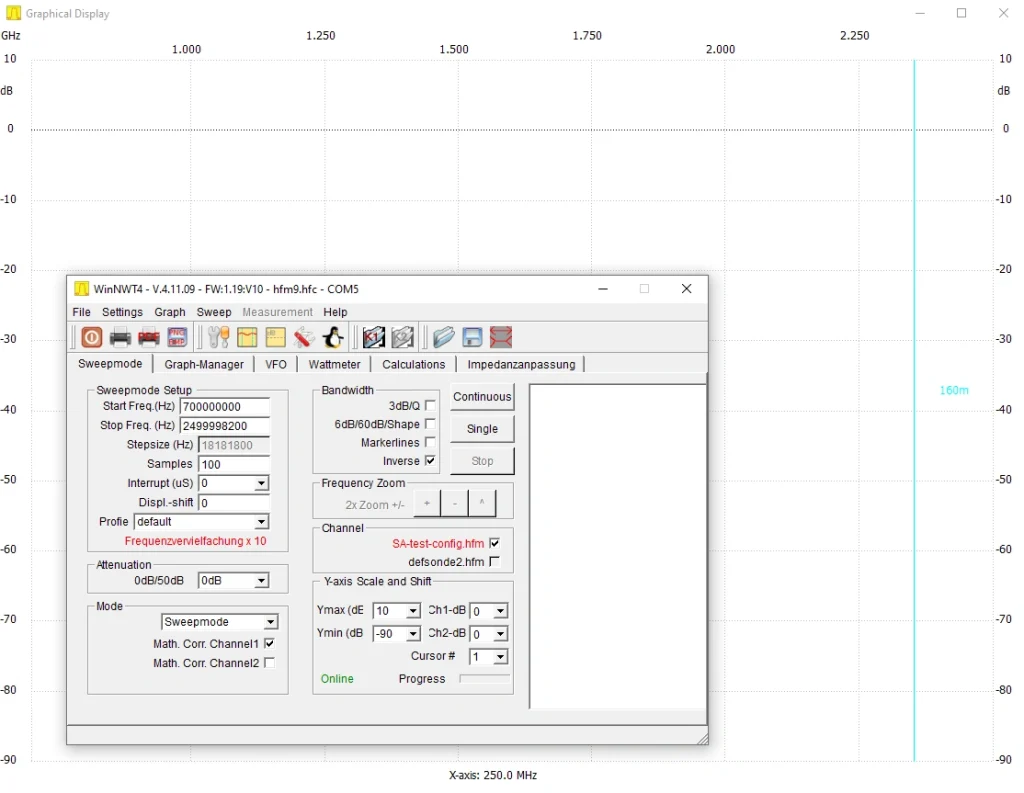
As shown in Figure 1, when you open the software, two windows appear simultaneously. This software belongs to the series 4 devices of the company, and apparently, at the time of writing this article, no new update has been released specifically for the series 6.
Figure 2 displays the main page of the software, and in the following sections, we will examine the important parts of this software.
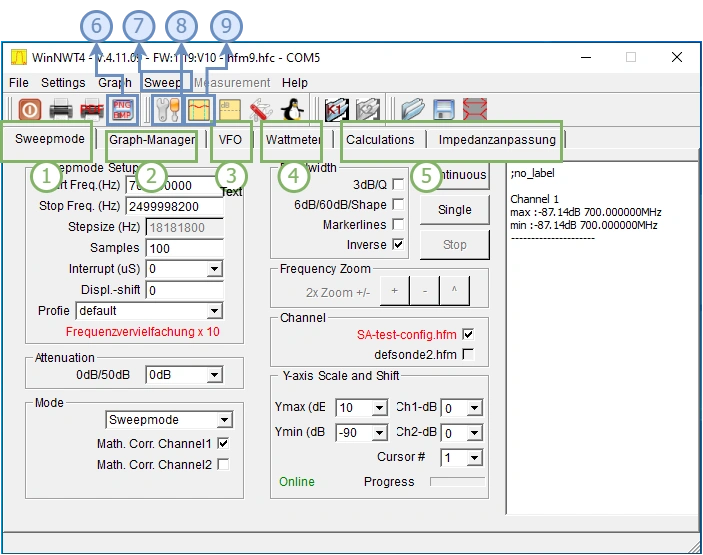
Below are the key sections we will be using:
- Sweep Mode: This tab allows setting the sweep bandwidth, interrupt times, analysis type, marker and measurement line settings, as well as X and Y axis margins.
- Graph Manager: Enables saving graphs and changing trace colors.
- VFO: Provides direct control over the Tracking Generator; different frequencies and output levels can be set here.
- Wattmeter: As the name suggests, this section displays the output power of the internal signal generator.
- These two sections are dedicated to impedance circuit calculations and impedance measurement.
- Selecting this option saves the current plot along with the active cursor information.
- Sweep: Calibration data and settings of the device are displayed and adjustable here.
- Frequency programming and device operating frequency settings are performed in this section.
- This option draws various helper and grid lines on the plot area.
Frequency Calibration
First, connect the power supply and USB cable, turn the device on using the two-position switch next to the serial port, and wait approximately 30 minutes for warm-up (please take this step seriously; until the unit is fully warmed up, frequency error is significant).
The device has an internal clock source but lacks a PLL phase-locked loop for higher accuracy and reduced frequency error. Therefore, the user must manually calibrate the clock source at the start of work. The clock source calibration procedure is explained below:
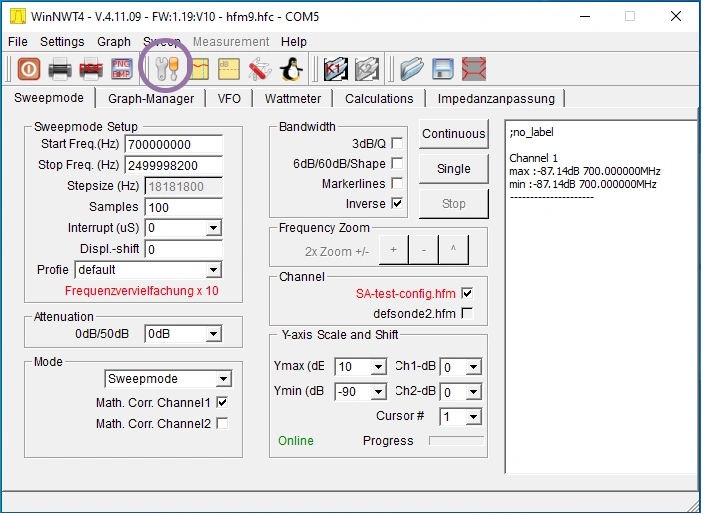
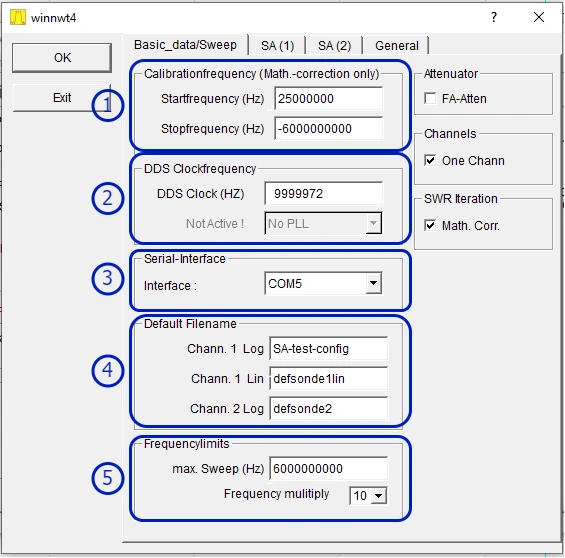
Click the Options menu in the top bar of the main window to open the settings page shown in Figure 3. The key fields are marked in the figure and explained below:
- Calibration frequency This first section (labeled 1) defines the start and stop frequencies for the full sweep range of the device. Enter the complete range of the NWT6000 (25 MHz to 6 GHz). Note: M and G suffixes are not allowed here — frequencies must be written in Hertz only.
- Start frequency: 25000000 (25 MHz)
- Stop frequency: -6000000000 (6 GHz — the negative sign must be included)
- DDS Clock Frequency Use this field to adjust the system clock accuracy. Initially set it to a value such as 10 MHz.
- Open Device Manager → Ports in Windows, note the COM port assigned to “USB Serial”, and select that exact port number here.
- Leave the settings in this section at their default values.
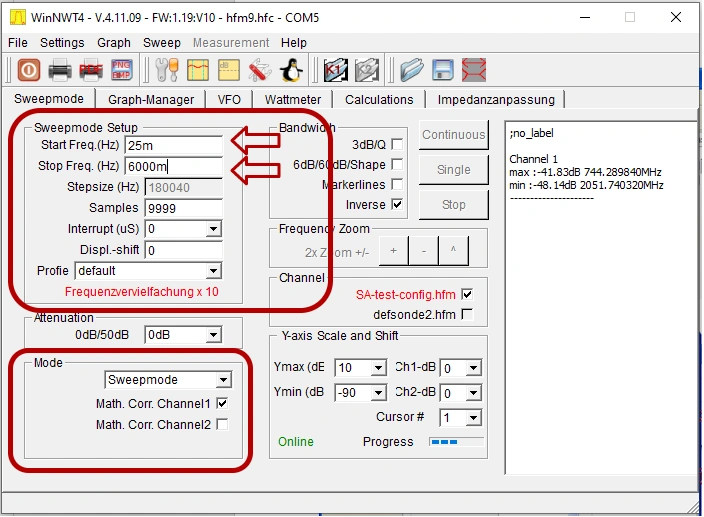
- In this field, enter 6000 MHz and set Frequency multiply to 10.
That’s all for this step — once these values are saved, the basic frequency calibration foundation is ready. The detailed clock fine-tuning procedure will follow in the next section.
After completing the settings described above, click OK and then go to the VFO tab.
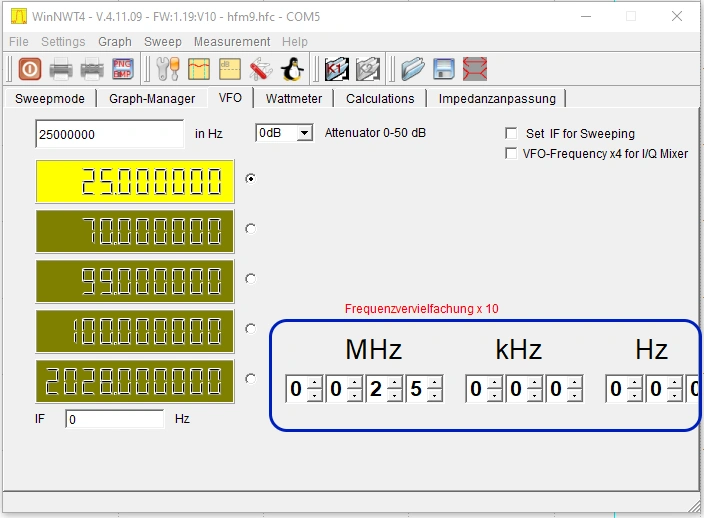
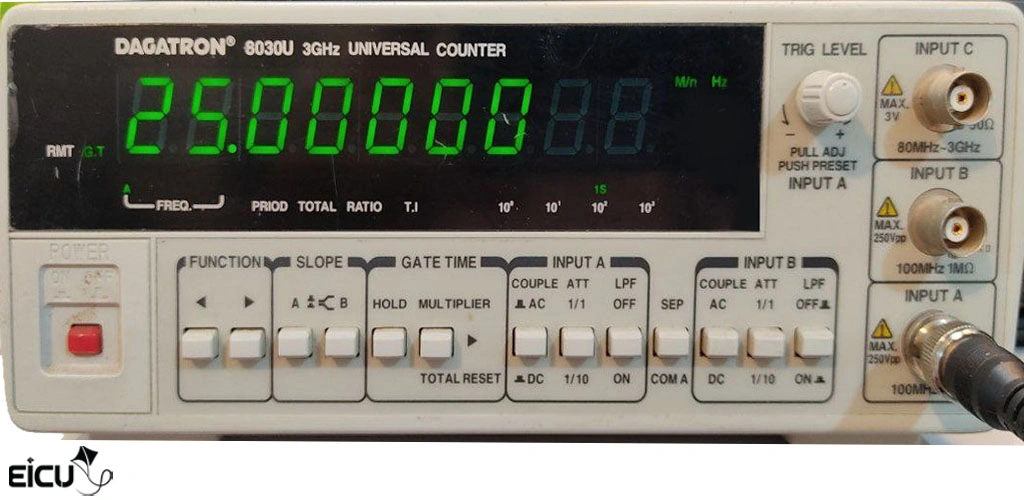
As shown in Figure 5, configure the output signal settings and set the output frequency to 25 MHz.
Now, make the appropriate connections (exactly as shown in Figure 6), connect the device output to a Universal Counter or Oscilloscope, and measure the actual output frequency in this state.
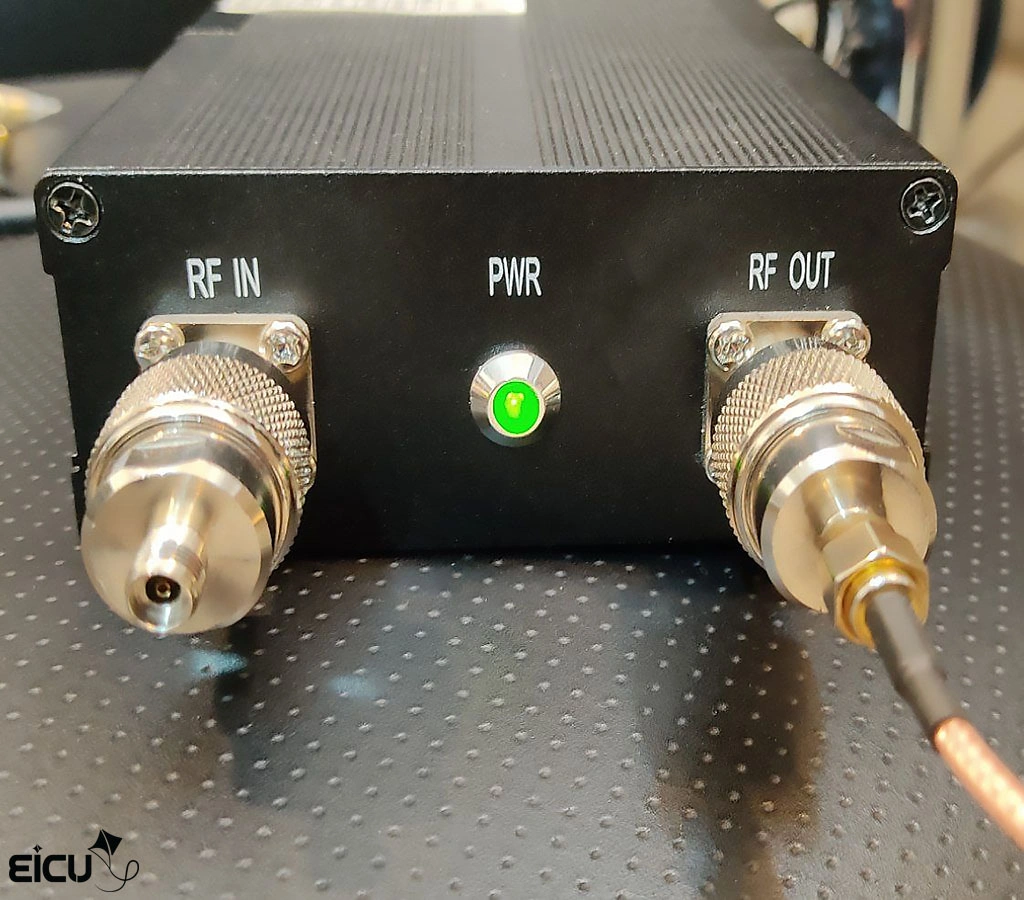
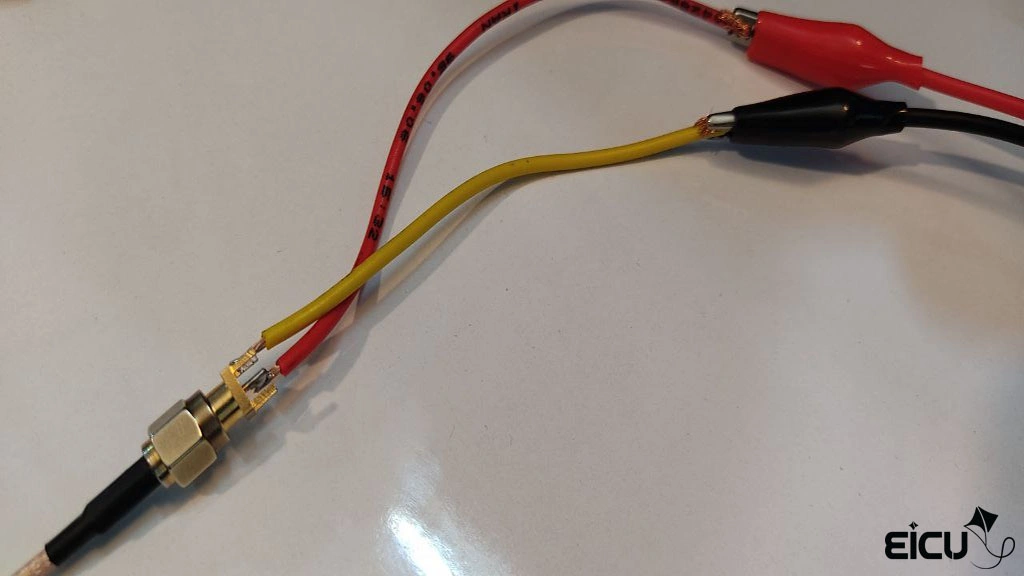
If the measured output frequency matches the frequency set in the VFO page with good accuracy, the frequency calibration process is complete at this point.
However, if there is a significant difference between the two frequencies, you must calculate the new DDS frequency using the following formula (1-1) and enter the result in the DDS Clock field under the Options tab. To confirm the accuracy of the new value, repeat the calibration steps once more.
Input Channel Gain Calibration
First, exit the VFO page and click on the Sweep Mode tab. In the Sweepmode Setup section, set the desired frequency range for calibration. It is recommended to use the maximum possible range: 25 MHz ~ 6 GHz. Also, in the Mode dropdown menu, select Sweepmode.
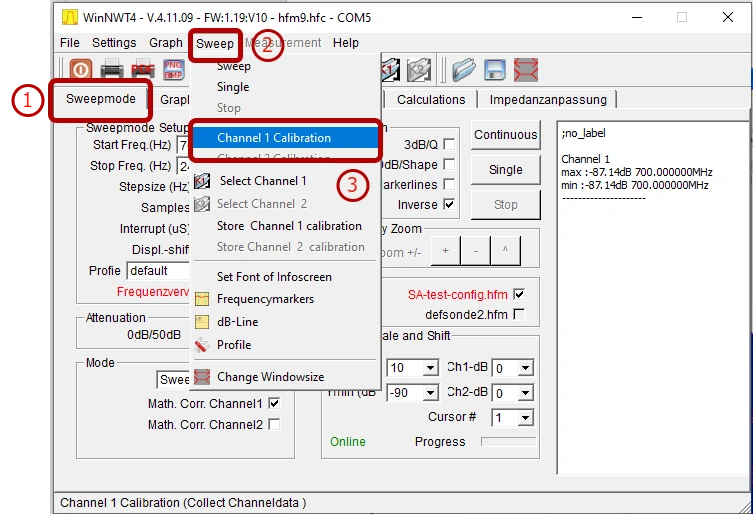
Click Sweep at the top of the page, then from the newly opened dropdown menu, select Channel1 Calibration (as shown in the figure below).
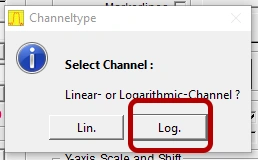
A new window will then appear asking you to select the channel plot type. According to Figure 11, this device only supports logarithmic plotting, so choose the Log. option.
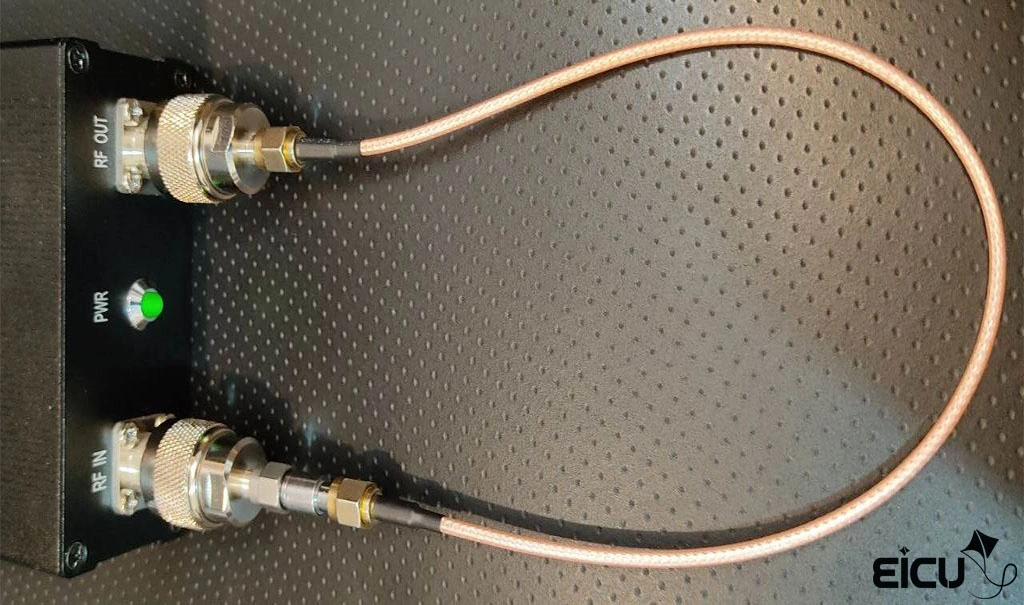
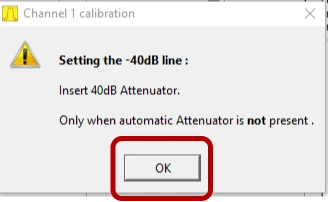
After selecting this option, another window will appear asking you to connect the device’s input and output to each other using a -40 dB attenuator (exactly as shown in Figure 12). This 40 dB attenuator is one of the standard accessories included with the spectrum analyzer.
After making the requested connections, click OK.
Please be patient while the sweeper performs the analysis and sampling. Once this step is finished, a new window (similar to the figure below) will appear asking you to:
- Remove the 40 dB attenuator
- Connect the input and output directly to each other, or use a smaller attenuator (0–20 dB range)
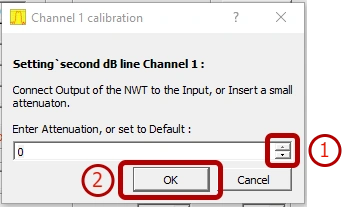
If you use a second attenuator, enter its exact value in the displayed field. If, like in this guide, you connect the input and output directly in the second step, leave the middle field at 0 and click OK.
After this step, the analyzer will once again enter calibration and sampling mode. Please remain patient until this process is fully complete and avoid clicking anywhere else in the program during this time.
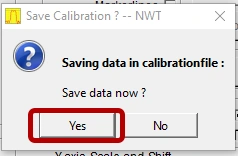
Once sampling and analysis are finished, the software will prompt you to save the configuration file. Do not overwrite the previous default config — change the directory or filename before saving.
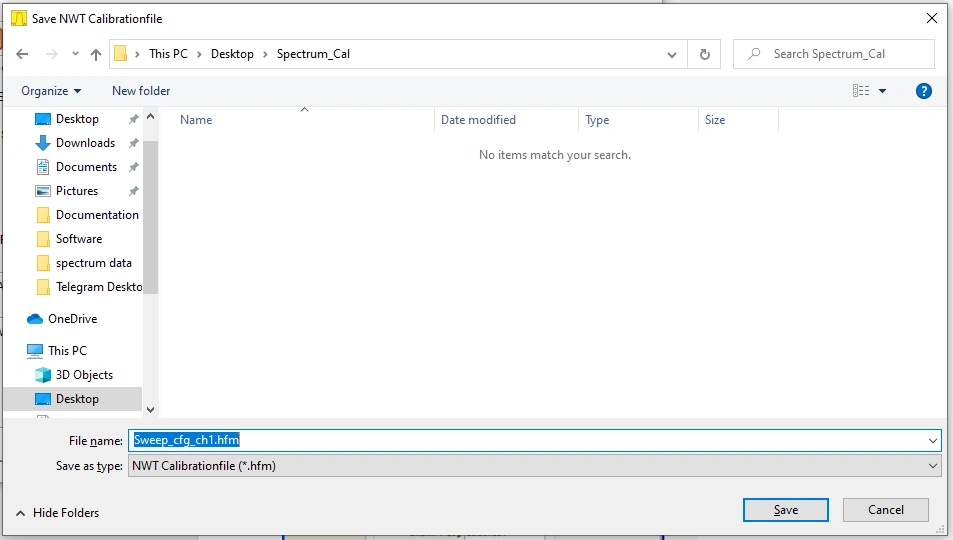
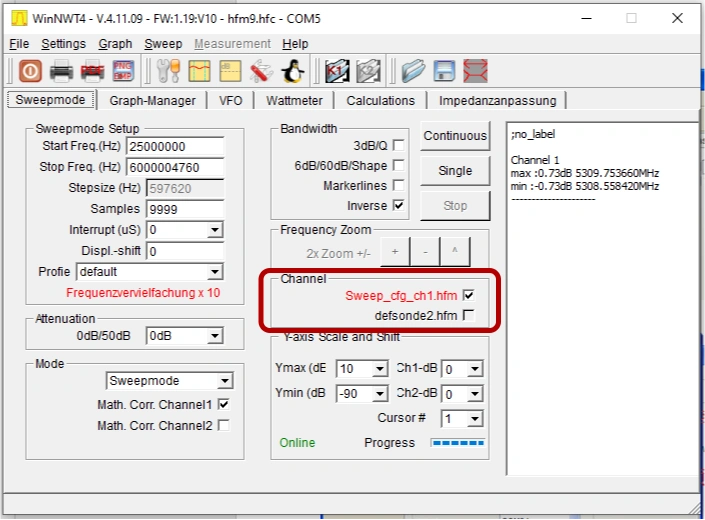
After completing this process, the new calibration file will be loaded for Channel 1, and from now on all measurements will use this updated calibration.
Performing a Frequency Sweep
After this step, the analyzer will once again enter calibration and sampling mode. Please remain patient until this process is fully complete and avoid clicking anywhere else in the program during this time.
Once sampling and analysis are finished, the software will prompt you to save the configuration file. Do not overwrite the previous default config — change the directory or filename before saving.
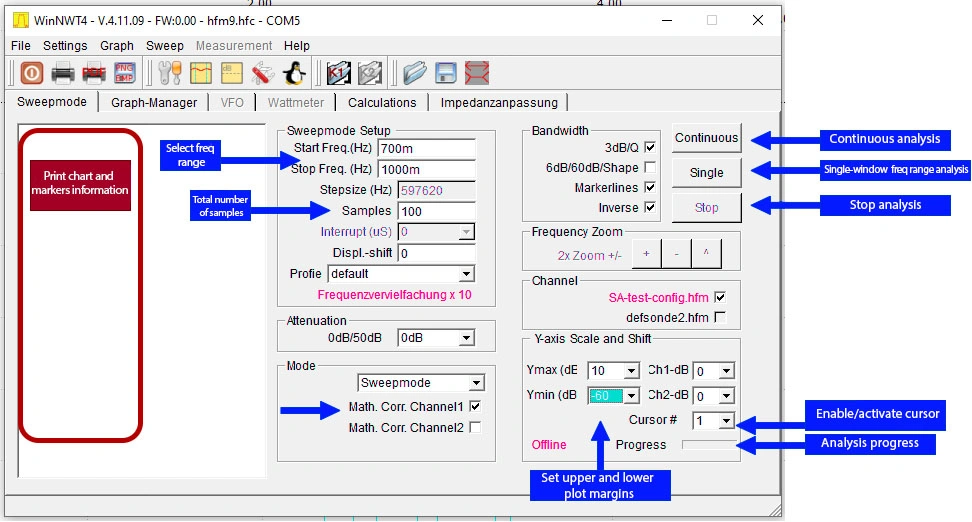
After completing this process, the new calibration file will be loaded for Channel 1, and from now on all measurements will use this updated calibration. After input channel calibration is complete, you can perform sweeps across different bandwidths. As shown in the figure, first select the desired frequency range and the number of Samples. The maximum number of samples is 9999 — the higher this value, the greater the accuracy but the slower the sweep.
In the Attenuation field, the software asks for the internal sweeper attenuator value. Since the NWT6000 has no internal attenuator, this option is effectively disabled.
In the Mode section (where we previously selected Sweepmode from the dropdown), also enable the Math. Corr. Channel1 checkbox.
The 23 Bandwidth section offers different options for displaying helper lines on the graph. For example, enabling 3dB will cause the software to automatically mark the -3 dB bandwidth when a peak appears and display the details in the white box beside the plot.
In the Y-axis section, you can set the upper and lower margins of the plot area to achieve the best visual representation of the trace.
Finally, three buttons are visible at the top right:
- Continuous: repeatedly sweeps the selected range and provides real-time view. While in this mode, always click Stop before changing any analysis parameters.
- Single: performs and displays only one sweep of the selected range, then stops automatically.
Using the 3000 MHz Return Loss Bridge
Introduction to the RF Bridge
If you are interested in the underlying RF theory, it is recommended to read about Return Loss Bridges on relevant websites or any reference you prefer to understand how they work.
The bridge we use has gained popularity mainly because of its extremely low price while still delivering practical and reliable results for most IoT and antenna testing needs.
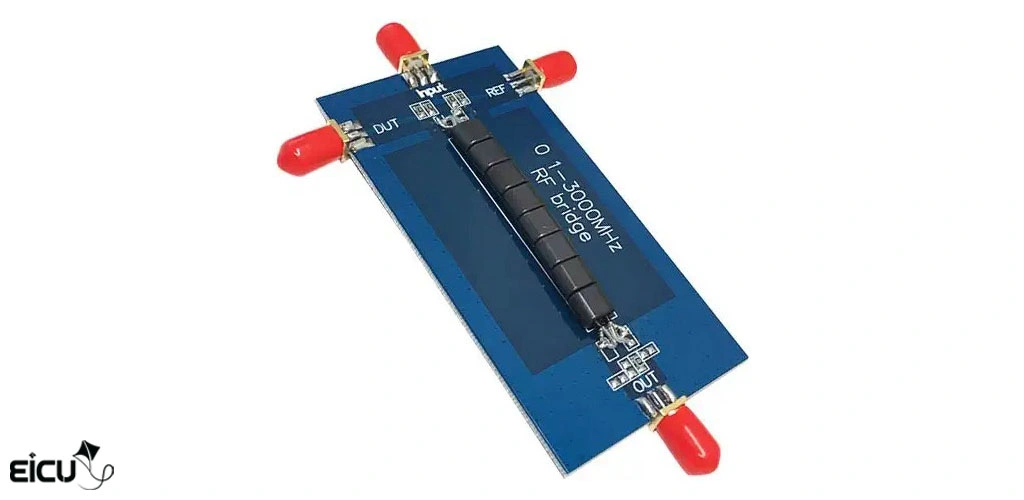
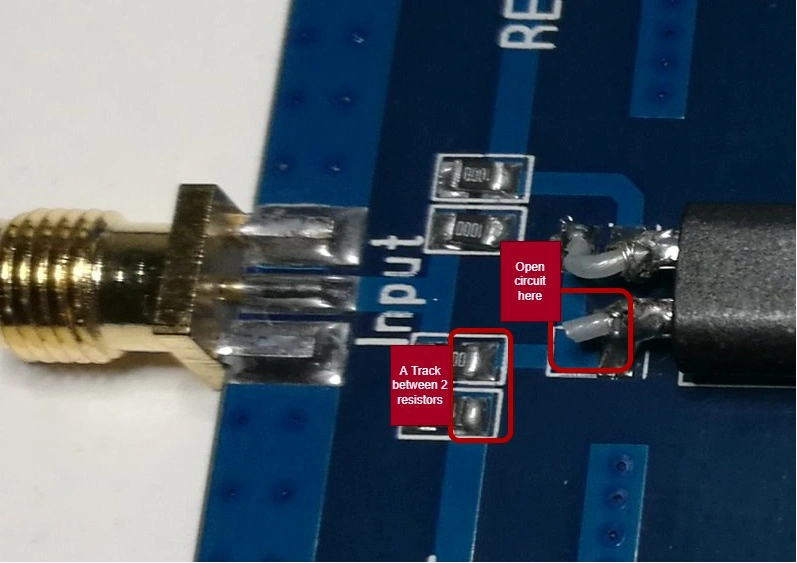
You can purchase this bridge from various online stores, but be very careful: the market is flooded with fake/counterfeit versions that contain serious circuit errors (the most common issue being reversed Reference and DUT ports). This reversal directly causes measurement errors.The module we originally received also had impedance and circuit issues. After thorough inspection and testing, these problems were corrected. The figure below clearly shows one of the critical impedance path differences between an original board and a typical copy.
Sweep Analysis with the Bridge
First, connect the bridge to the NWT6000 exactly as described below:
- To minimize measurement error, securely mount the bridge module on a holder or assembly jig so that the physical conditions do not change during calibration and testing.
- Connect the Input port of the bridge to the Vo (tracking generator output) of the spectrum analyzer. Connect the Output port of the bridge to the Vin (input) of the spectrum analyzer.
- Use a high-quality 50 Ω RF load to properly terminate the DUT and REF ports whenever required.
After correctly connecting the bridge to the NWT6000 (without altering the previous calibration), perform two sweeps:
- One sweep with the bridge left completely open (no termination)
- One sweep with both DUT and REF ports properly terminated with 50 Ω loads
Compare the difference between these two states.
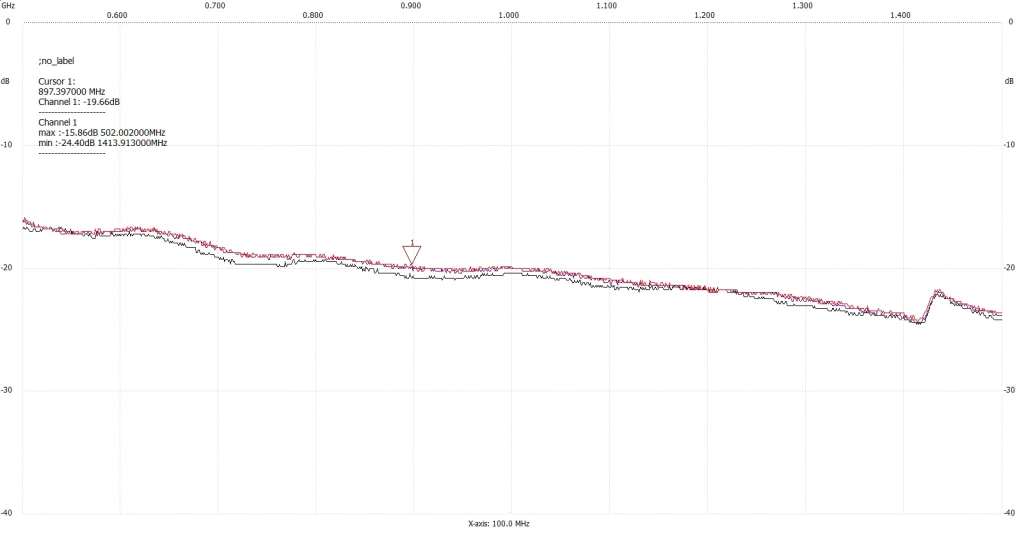
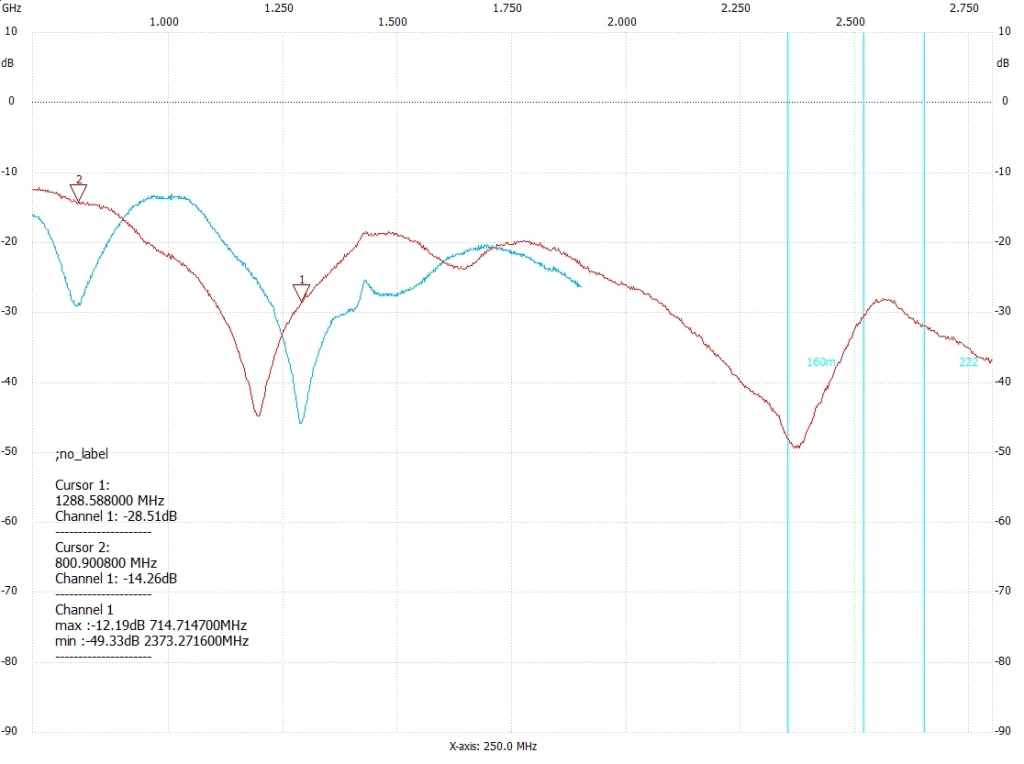
The figure by the figure below shows the sweep result when the bridge is in the open state (red trace).
As mentioned earlier, the bridge module has two ports: DUT and REF.
The REF port is the reference port and is normally terminated with a dummy load or 50 Ω RF load to maintain circuit symmetry.
The DUT port stands for Device Under Test; it remains open during the calibration steps (explained next) and is connected to the antenna under test during actual measurements.
Now terminate the REF port with a 50 Ω load, connect a right-angle rubber antenna to the DUT port, and set the desired frequency range and number of sample points.
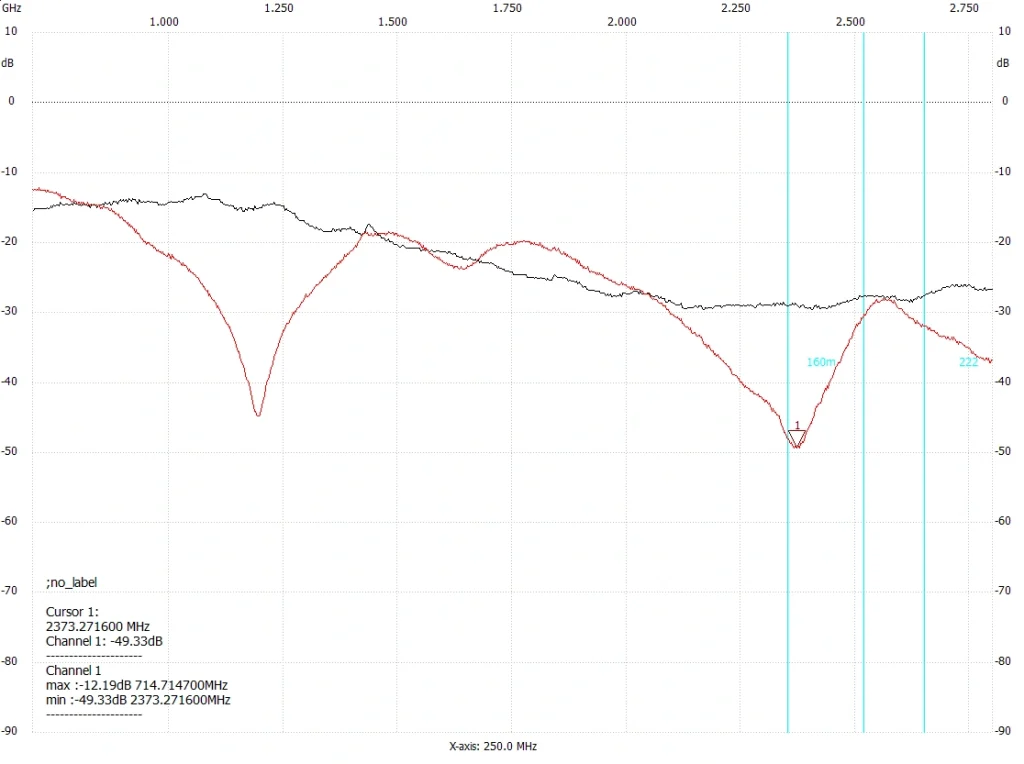
On these plots, the dip (drop) in the trace indicates the center frequency/bands of the connected antenna. The deeper the dip, the better the return loss, meaning higher antenna efficiency and transmitted power.
In the plot below:
- The black trace shows the open-state response
- The green trace shows the measurement of a low-band GSM rubber antenna
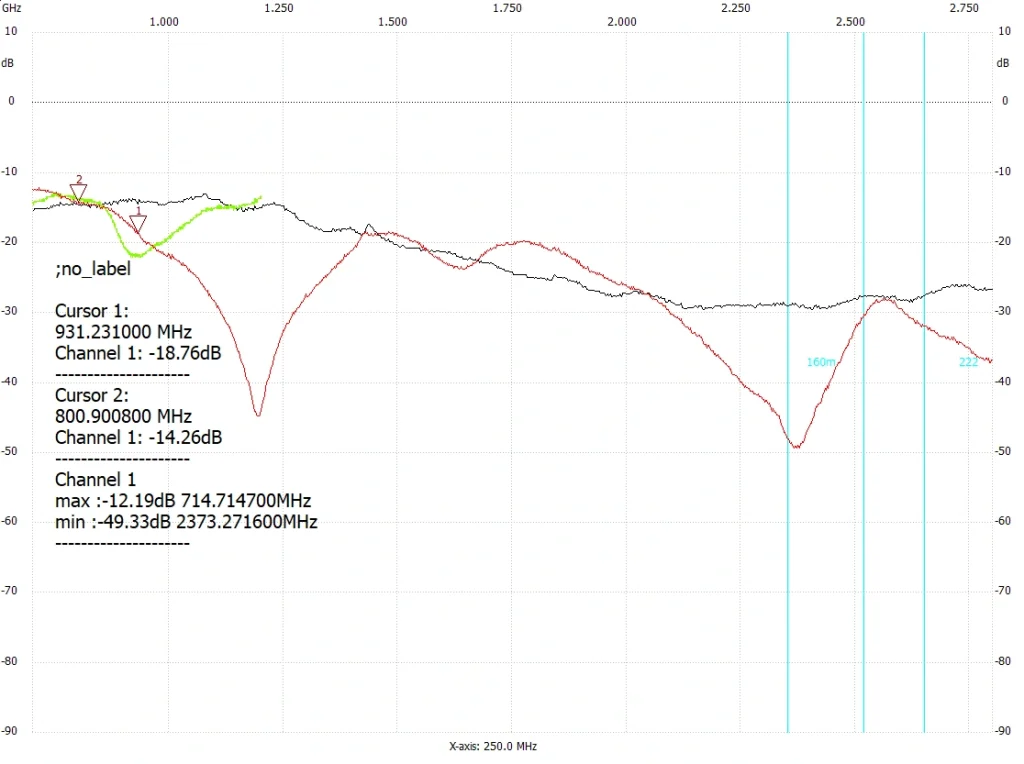
The same test was repeated with a different GSM antenna. The resulting trace is shown below in blue.
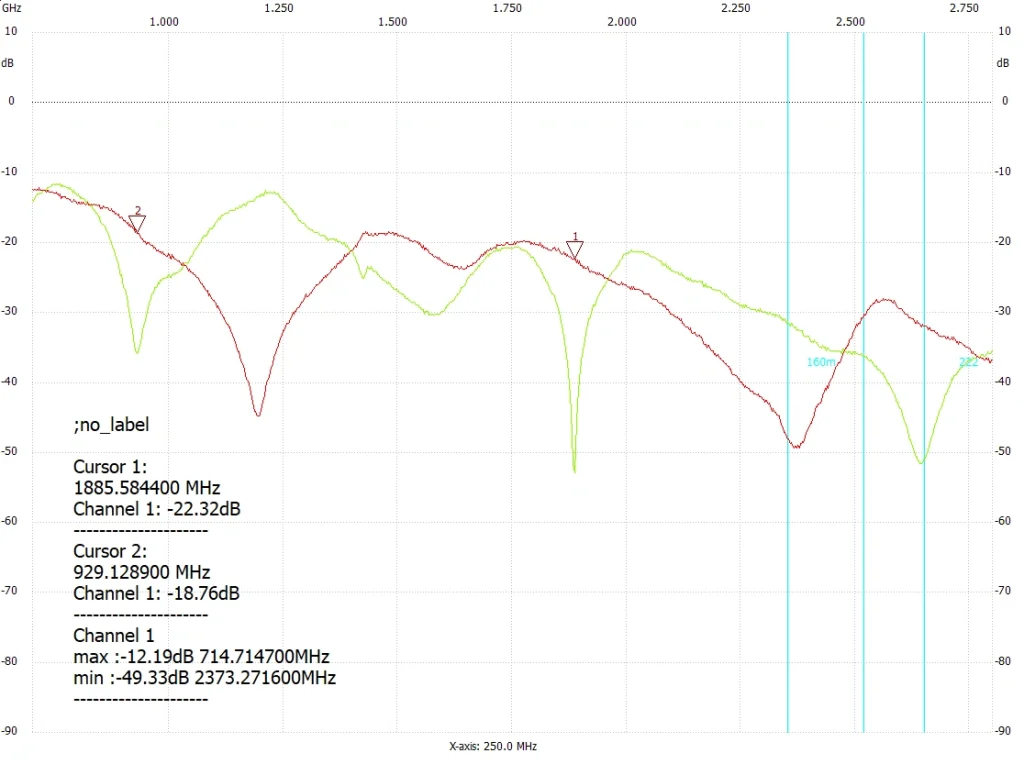
Next, we tested an LTE antenna. The frequency sweep result is shown in the previous figure (green trace), with Cursor 1 and Cursor 2 positioned to highlight the center operating frequencies of this antenna.
Wi-Fi Antenna Test
Finally, a Wi-Fi antenna was tested, and the resulting trace is shown in the figure below.
SWR Analysis
To perform SWR measurement, first connect the bridge exactly as shown in the table below:
Then, in the Mode dropdown menu, select SWR. In the Sweepmode Setup section, set the full frequency range you want for the initial SWR calibration.
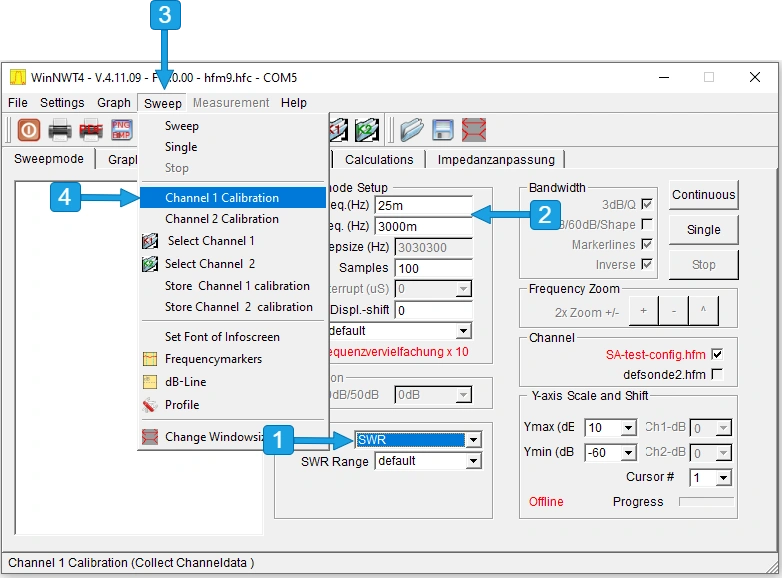
Then, as shown in the figure, from the Sweep menu of the software, select Channel 1 Calibration.
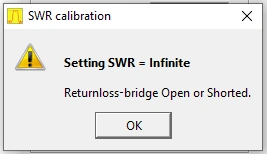
The software will then prompt you to set the bridge test port (DUT) to Open or Short circuit. Confirm the requested condition. After confirmation, the device starts the sampling process. When it finishes, you will be asked to save the new configuration and calibration file.
With calibration finished, you can now perform accurate SWR analysis on various antennas. In the following sections, these measurements are demonstrated with several different antennas.
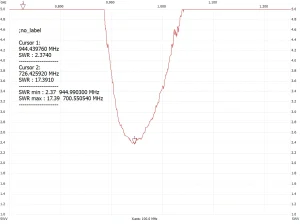
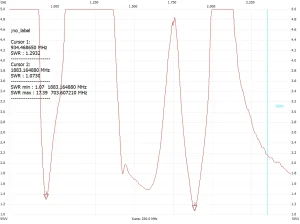
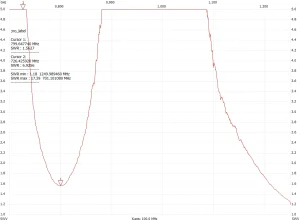
In these tests, three key parameters are usually the most important. You should compare them with the antenna datasheet and your communication module specifications:
- Measured center frequency
- 3 dB bandwidth at that frequency
- VSWR level – generally, a value below 2 is considered acceptable.
During real measurements, you will almost always see a slight frequency shift and some reduction in amplitude. These effects can be minimized through:
• Precise calibration
• High-quality cables and connectors
• Using a good-quality bridge
• Not moving or altering the setup between calibration and actual testing
However, always remember: this is a very cost-effective solution for testing antennas and RF transceivers. It cannot fully replace high-precision professional laboratory equipment, but for most practical IoT and embedded projects, it delivers more than sufficient accuracy.
1.NWT nwt serial sweep analyzer
2.simple spectrum analyzer,simple signal generator
