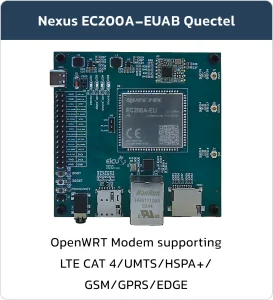

EC200A-EU OpenWRT Tutorial
Basic Overview #
The OpenWrt Project is a highly versatile Linux operating system designed specifically for embedded devices. Unlike standard firmware with fixed features, OpenWrt offers a fully writable file system with integrated package management. This approach liberates users from the limitations of vendor-specific software, allowing for deep customization by installing packages tailored to virtually any need.
For developers, OpenWrt serves as a flexible framework to build applications without the burden of creating an entire firmware stack. For end-users, it unlocks a world of full customization, enabling them to utilize their devices in innovative ways far beyond the manufacturer’s original intent.
The Quectel EC200A-EU series are compact, high-performance LTE Cat 4 modules engineered for Machine-to-Machine (M2M) and Internet of Things (IoT) applications. Built on 3GPP Release 9 LTE technology, these modules support impressive data rates of up to 150 Mbps downlink and 50 Mbps uplink. Combining OpenWrt with the EC200A creates a powerful synergy. This integration allows you to harness the high-speed cellular connectivity of the LTE module while simultaneously benefiting from the robust, flexible, and customizable environment of the OpenWrt operating system.
Prerequisites #
Hardware Requirements #
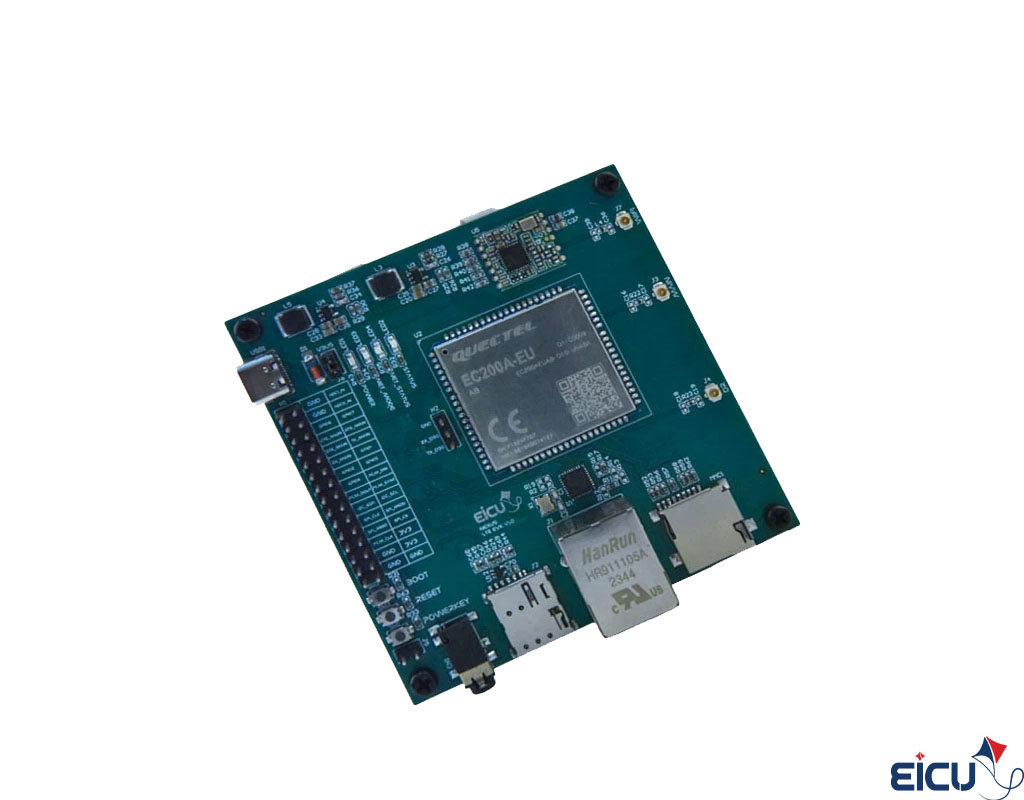
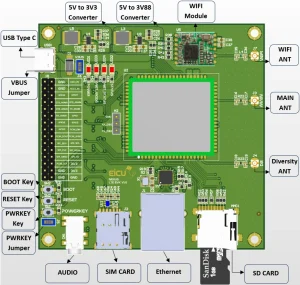
The EiCut Nexus is a feature-rich OpenWrt development board built around the Quectel EC200 series LTE module. Designed for embedded engineers, network developers, and IoT system integrators, it brings nearly the entire EC200A-EU OpenWRT peripheral set out to accessible headers—each safely converted from the module’s 1.8 V logic to 3.3 V using high-quality level shifters. This gives developers full access to the EC200A-EU OpenWRT’s internal interfaces without the complexity of handling low-voltage signaling directly. Available peripherals include:
- SPI
- I²C
- UART
- PCM / audio digital interface
- ADC inputs
- General-purpose GPIO pins
The EiCut Nexus expands connectivity with a built-in 10/100 Ethernet port, USB Type-C (for power, debug, and firmware), SIM card holder, microSD slot, and an onboard Wi-Fi module—all integrated into a compact and production-ready design. Engineered for reliability and easy integration, the EiCut Nexus is a powerful platform for building 4G/LTE routers, IoT gateways, industrial controllers, telematics systems, smart metering devices, and any project that needs flexible connectivity with full OpenWrt control over the modem.
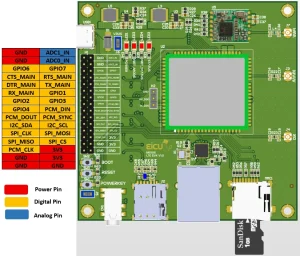
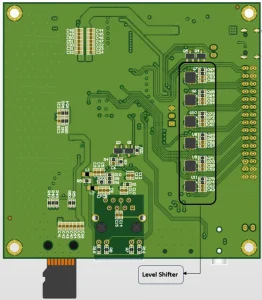
Software Requirements #
- Ubuntu 20.04 Linux system
- 8GB+ RAM, 50GB+ free disk space
- Quectel OpenWRT SDK
- Quectel Firmware Loader (QDloader)
Step 1: Environment Setup #
Download the SDK and install the following packages as shown below:
|
1 2 3 4 5 6 7 8 |
# Update system sudo apt update && sudo apt upgrade -y # Install build dependencies sudo apt install --assume-yes \ build-essential clang flex g++ g++-multilib gcc-multilib \ libncurses5-dev libssl-dev python3 python3-pip python3-venv \ git wget curl file unzip rsync bc bison cpio coreutils |
Step 2: Python Virtual Environment #
Create a virtual environment for the required packages:
|
1 2 3 4 5 6 7 8 |
sudo apt install python3.8-venv # Create and activate virtual environment python3 -m venv openwrt-build source openwrt-build/bin/activate # Install Python dependencies pip install pyhocon |
Step 3: Build Configuration #
Then run these commands:
|
1 2 3 4 5 6 7 |
source package/quectel/compile/ql_build_config buildversion EC200A_EUAB EC200ACNAAR01A01M1G V01 FFF EC200ACNAAR01A01M1G 01 01.001 buildconfig EC200A_EUAB EC200ACNAAR01A01M1G STD # Optional: Customize packages make menuconfig |
Configure OpenWRT
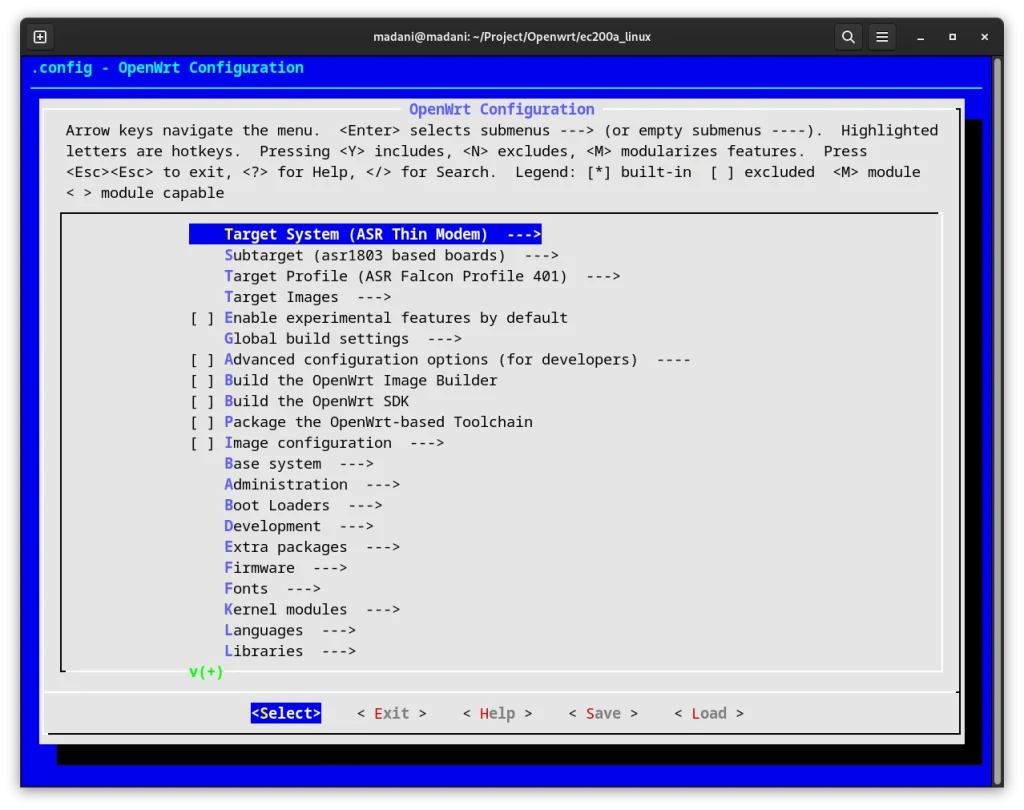
The menuconfig interface allows you to:
- Select target system and profile
- Choose additional packages
- Enable/disable kernel features
- Customize build options
As you can see in the photo, there are thousands of options in menuconfig that you can modify according to your project requirements.
Step 4: Building the Firmware #
After making the necessary changes, use this command to build the project:
|
1 2 |
# Start building the Quectel firmware (EC200A) build_fw |
After successfully building the image, you can find it at this location:
|
1 |
quectel_asr_linux/bin/target/EC200ACNAAR01A01M1G/fbf |
Step 5: Flashing the Firmware #
To install it on your device, use this command:
|
1 2 |
# Flash EC200A/CN firmware using QDL tool (EDL mode) sudo ./QDloader -s /dev/ttyUSB0 -f EC200ACNAAR01A01M1G_fbf.bin -g EC200U |
If you do not have the Qdloader you should download and unzip it and then run make. Qdloader will be in “out” directory. Put the firmware inside out directory beside the Qdloader and use the above command.
Note: ttyUSB0 is the serial port of my 4G module. If you are unsure which port your module is using, you can identify it with:
|
1 2 3 |
# Verify Quectel module is in EDL (Emergency Download) mode # Device should appear as Qualcomm HS-USB QDLoader 9008 (VID:PID 2c7c:6005) lsusb -v -d 2c7c:6005 | grep "interface" |
The ID used with lsusb -v -d (e.g., 2c7c:6005) comes from the vendor and product ID when you run lsusb.
Connecting to the OpenWrt Console #
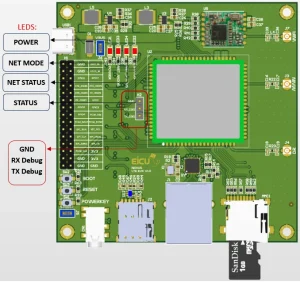
To access the OpenWrt system on the EiCut Nexus EC200A-EU OpenWRT board, connect a USB-to-UART adapter to the H2 pin header located next to the EC200A-EU OpenWRT module. After opening the serial terminal, press Enter once; the console will prompt you for login credentials.
- Username: root
- Password: admin
On Windows, it is recommended to use MobaXterm or PuTTY.
On Linux, a common choice is minicom, but you may also use screen, picocom, or gtkterm.
UART Configuration #
-
- Baud Rate: 115200
- Data Bits: 8
- Parity: None
- Stop Bits: 1
- Flow Control: None
- Voltage: 1.8/3.3v
Example (Linux minicom command)
|
1 2 3 |
# Open serial console to EC200 module (AT/debug port) # Baud rate: 115200 (default for most Quectel modules) sudo minicom -D /dev/ttyUSB0 -b 115200 |
Package Feeds #
While OpenWrt includes many essential packages in its core system, the vast majority of available software comes from external sources known as package feeds. The main OpenWrt repository contains packages maintained directly by the core development team. These include essential system components, the build system, and critical firmware elements. However, most additional software comes from community-maintained package feeds. You can use the “feeds.conf.default” which you can find in the main SDK directory to add the Luci and other package feeds to your project. Here are the primary official package feeds:
Web Interface: LuCI web GUI
Telephony: VoIP & telephony packages
Routing: Advanced routing protocols
Community Packages: General community packages
Use the ./scripts/feeds update -a command to obtain package definitions.
After the definitions have been updates, execute ./scripts/feeds install <packagename> to prepare the package and its dependencies.
Adding Customize Packages to OpenWRT #
We’ll begin with a very simple application and progressively walks you through the basics of developing your package. All the source code example files in this series are written in the C programming language.
|
1 2 3 4 5 6 |
# Create directory and enter it mkdir helloworld cd helloworld # Create and edit the source file nano helloworld.c |
Add this to helloworld.c:
|
1 2 3 4 5 6 7 |
// helloworld.c - Classic Hello World program #include int main(void) { printf("\nHello, world!\n\n"); return 0; } |
Then compile it running these commands:
|
1 2 3 4 5 6 7 8 9 10 11 |
# Compile object file with all warnings enabled gcc -c -o helloworld.o helloworld.c -Wall # Link and create executable gcc -o helloworld helloworld.o # Run the program ./helloworld # Expected output: # Hello, world! |
You should be greeted by the text “Hello, world!”. If this did not happen, or if you encounter errors when running the above compilation and linking commands, ensure the content of your source file is correct and that you have the native compilation tools installed for your environment.
We create a new package repository into the OpenWRT directory. The name of this repository is ‘mypackages’, and it contains a single category called ‘examples’. In this category, there is only a single entry, our ‘helloworld’ application:
|
1 2 3 4 5 6 |
# Create directory structure for custom OpenWrt package mkdir -p mypackages/examples/helloworld cd mypackages/examples/helloworld # Create the package Makefile nano Makefile |
Add this to Makefile:
|
1 2 3 4 5 6 7 8 9 10 11 12 13 14 15 16 17 18 19 20 21 22 23 24 25 26 27 28 29 30 31 32 33 34 35 36 37 38 39 40 41 42 43 |
include $(TOPDIR)/rules.mk # Package information PKG_NAME:=helloworld PKG_VERSION:=1.0 PKG_RELEASE:=1 # Path to your source code (change to your actual path) SOURCE_DIR:=/helloworld include $(INCLUDE_DIR)/package.mk # Package definition for menuconfig define Package/helloworld SECTION:=examples CATEGORY:=Examples TITLE:=Hello, World! endef define Package/helloworld/description A simple "Hello, world!" application. endef # Copy source files to build directory define Build/Prepare mkdir -p $(PKG_BUILD_DIR) cp $(SOURCE_DIR)/* $(PKG_BUILD_DIR)/ $(call Build/Prepare/Default) endef # Compile the program using OpenWrt toolchain define Build/Compile $(TARGET_CC) $(TARGET_CFLAGS) -o $(PKG_BUILD_DIR)/helloworld.o -c $(PKG_BUILD_DIR)/helloworld.c $(TARGET_CC) $(TARGET_LDFLAGS) -o $(PKG_BUILD_DIR)/helloworld $(PKG_BUILD_DIR)/helloworld.o endef # Install the binary to the target filesystem define Package/helloworld/install $(INSTALL_DIR) $(1)/usr/bin $(INSTALL_BIN) $(PKG_BUILD_DIR)/helloworld $(1)/usr/bin/helloworld endef $(eval $(call BuildPackage,helloworld)) |
The OpenWrt build system uses a specific file called feeds.conf which indicates the package feeds that will be made available during the firmware configuration stage. In order for the package containing the application to be made visible in the first place, it is necessary to include the new package feed into this file. By default, this file does not exist in the OpenWrt source code directory, so it is necessary to create it:
|
1 2 3 |
# Open feeds configuration file # (located in the root of your OpenWrt SDK or source tree) nano feeds.conf |
Add this:
|
1 2 3 4 5 |
# Add your custom package feed (replace with your actual SDK path) src-link mypackages /mypackages # Example (replace /home/user/openwrt-sdk with your real path): # src-link mypackages /home/user/openwrt-sdk/mypackages |
Run these commands:
|
1 2 3 4 5 |
# Refresh your custom package feed ./scripts/feeds update mypackages # Install all packages from the mypackages feed (including helloworld) ./scripts/feeds install -a -p mypackages |
If the last step completes successfully, you should see the response below as the script finds the feed for our new package and adds it to the index:
|
1 2 |
# Your custom package is now fully recognized! Installing package 'helloworld' from mypackages |
Note : whenever you modify the package manifest file, the feeds system will automatically detect this, and will perform an update on your behalf before completing other commands such as ‘make menuconfig’ or before building a package.
OpenWrt Scripting #
OpenWrt scripts are executable files containing commands that automate tasks on your OpenWrt router. They combine Linux commands, OpenWrt-specific utilities (like uci), and program logic to perform complex operations automatically.
Key characteristics #
- Text files containing commands
- Can be written in shell languages (sh, bash) or other interpreters
- Execute with appropriate permissions
- Can interact with OpenWrt’s configuration system
Automation Benefits #
- Time-saving: Automate repetitive tasks
- Consistency: Ensure configurations are applied uniformly
- Reliability: Reduce human error in complex procedures
- Monitoring: Continuously check system status
- Customization: Extend OpenWrt functionality beyond web interface capabilities
Common Use Cases #
- Network configuration management
- System monitoring and alerts
- Automated backups
- Custom firewall rules
- Service management
- Dynamic DNS updates
Example Tasks Achievable with Scripts #
Network Configuration:
|
1 2 3 4 5 6 7 8 9 10 11 12 13 14 15 16 17 18 |
#!/bin/sh # Basic network configuration via UCI # Set LAN IP address uci set network.lan.ipaddr='192.168.1.1' # Configure WAN as DHCP client uci set network.wan.proto='dhcp' # Save changes uci commit network # Apply network configuration /etc/init.d/network reload # Optional: full restart (safer on some devices) # /etc/init.d/network restart |
System Monitoring:
|
1 2 3 4 5 6 7 8 |
#!/bin/sh # Monitor CPU usage and log if high CPU_USAGE=$(top -bn1 | grep "CPU:" | awk '{print $2}' | cut -d'%' -f1) if [ ${CPU_USAGE%.*} -gt 80 ]; then logger "High CPU usage detected: $CPU_USAGE%" fi |
Automated Backups:
|
1 2 3 4 5 6 7 8 9 |
#!/bin/sh # Create a dated backup of OpenWrt configuration # Destination directory (change or mount USB/SD here) BACKUP_DIR="/tmp/backup" mkdir -p $BACKUP_DIR # Generate backup with date in filename (YYYYMMDD) sysupgrade -b $BACKUP_DIR/backup-$(date +%Y%m%d-%H%M).tar.gz |
Script Languages Available #
- Shell Script (sh/bash)
- Default: /bin/sh (ash) is always available
- Best for: System administration, file operations
- Lua
- Install lua
- Best for: Complex logic, web interfaces
- Python
- Install python3
- Best for: Advanced applications, external APIs
- Other Languages
- Perl, PHP, etc.
Creating Your First Script #
Step 1: Create the Script File
|
1 2 3 4 5 6 7 8 9 10 11 12 13 14 15 16 |
# Create dedicated scripts directory mkdir -p /etc/scripts # Create your first useful script cat > /etc/scripts/my_first_script.sh << 'EOF' #!/bin/sh # Simple system information script echo "=== System Information ===" echo "Hostname: $(uci get system.@system[0].hostname)" echo "Date/Time: $(date)" echo "Uptime: $(uptime | awk '{print $3,$4}' | sed 's/,//')" echo "Load: $(cat /proc/loadavg | awk '{print $1,$2,$3}')" echo "Memory: $(free -m | awk 'NR==2{printf \"%.1f%% used (%d/%d MB)\", $3*100/$2, $3, $2}')" echo "Root FS: $(df /overlay | awk 'NR==2 {printf \"%.1f%% (%s/%s)\", $3*100/$2, $3, $2}')" echo EOF |
Step 2: Make it Executable
|
1 2 |
# Make the script executable chmod +x /etc/scripts/my_first_script.sh |
Step 3: Test the Script
|
1 2 3 4 5 6 7 8 9 10 11 12 13 14 |
# Execute your custom system information script /etc/scripts/my_first_script.sh # Example output: === System Information === Hostname: OpenWrt Date/Time: Sun Nov 23 18:45:12 2025 Uptime: 5 days 12:34 Load: 0.15 0.10 0.08 Memory: 38.7% used (157/406 MB) Root FS: 72.1% (2650/3674) # One-liner alternative (anytime, anywhere) /etc/scripts/my_first_script.sh |
Understanding System Tasks #
System tasks are automated operations that run based on specific triggers:
- Boot-time: When system starts
- Scheduled: At specific times (cron)
- Event-based: When specific events occur
- Periodic: Regular intervals
OpenWrt’s Init System
OpenWrt uses procd (OpenWrt process management daemon) to manage services and tasks through:
- /etc/init.d/ – Service scripts
- /etc/rc.local – User startup commands
- cron – Scheduled tasks
Boot-time Scripts #
Method 1: Using /etc/rc.local (Simplest) #
|
1 2 3 4 5 6 7 8 9 10 11 12 13 |
# Create or overwrite /etc/rc.local with your boot commands cat > /etc/rc.local << 'EOF' #!/bin/sh # === Commands executed at every boot === # Example: Start your custom service/script # /etc/scripts/my_service.sh start & # Example: Open a port permanently iptables -I INPUT -p tcp --dport 8080 -j ACCEPT 2>/dev/null ip6tables -I INPUT -p tcp --dport 8080 -j ACCEPT 2>/dev/null # Example: Run system info at boot (logged) /etc/scripts/my_first_script.sh | logger -t BOOT # Always exit cleanly exit 0 EOF # Make rc.local executable (critical!) chmod +x /etc/rc.local |
Method 2: Create a Custom Init Script (Recommended for Services) #
|
1 2 3 4 5 6 7 8 9 10 11 12 13 14 15 16 17 18 19 20 21 22 23 24 25 26 27 28 |
# Create init script cat > /etc/init.d/my-custom-service << 'EOF' #!/bin/sh /etc/rc.common START=99 STOP=10 start() { echo "Starting my custom service" /etc/scripts/my_service.sh start & } stop() { echo "Stopping my custom service" /etc/scripts/my_service.sh stop } restart() { stop sleep 2 start } EOF # Enable and manage the service chmod +x /etc/init.d/my-custom-service /etc/init.d/my-custom-service enable # Enable auto-start on boot /etc/init.d/my-custom-service start # Start now |
Method 3: Using Cron with @reboot #
|
1 2 3 4 5 6 7 |
# Edit root's crontab (most common method) crontab -e # Add this line inside the editor (vi/nano): @reboot /etc/scripts/my_boot_script.sh >> /tmp/boot.log 2>&1 # Save & exit (:wq in vi, Ctrl+X → Y → Enter in nano) |
Advanced Topics #
-
- Error Handling in Scripts
|
1 2 3 4 5 6 7 8 9 10 11 12 13 14 15 16 17 |
#!/bin/sh set -e # Exit on any error # Check if command exists command -v uci >/dev/null 2>&1 || { echo "Error: uci command not found" >&2 exit 1 } # Function with error checking backup_config() { if ! sysupgrade -b "/tmp/backup-$(date +%Y%m%d).tar.gz"; then logger "Backup failed!" return 1 fi logger "Backup completed successfully" } |
-
- Using UCI in Scripts
|
1 2 3 4 5 6 7 8 9 10 11 12 13 14 15 16 17 18 |
#!/bin/sh # Read configuration get_hostname() { uci get system.@system[0].hostname } # Set configuration safely set_lan_ip() { local new_ip=$1 if uci set network.lan.ipaddr="$new_ip"; then uci commit network echo "IP address updated to $new_ip" else echo "Failed to update IP address" >&2 return 1 fi } |
-
- Creating Logging Functions
|
1 2 3 4 5 6 7 8 9 10 11 12 13 14 15 16 17 18 19 20 21 22 23 24 25 |
#!/bin/sh # Persistent log file (survives reboots) LOG_FILE="/var/log/custom_script.log" # Auto-create log file + ensure directory exists [ -d "/var/log" ] || mkdir -p /var/log touch "$LOG_FILE" # Universal logging function log_message() { local msg="$1" local timestamp="$(date '+%Y-%m-%d %H:%M:%S')" # Write to persistent log file echo "$timestamp - $msg" >> "$LOG_FILE" # Also send to system log (view with logread) logger -t "custom_script" -p user.info "$msg" } # === Example usage === log_message "Script started" log_message "Configuration updated successfully" log_message "Rebooting device in 10 seconds..." |
-
- Network Monitoring Script
|
1 2 3 4 5 6 7 8 9 10 11 12 13 14 15 16 17 18 19 20 21 22 23 24 25 |
#!/bin/sh # Monitor internet connectivity check_internet() { if ping -c 1 -W 5 8.8.8.8 >/dev/null 2>&1; then echo "Internet: OK" return 0 else echo "Internet: FAILED" return 1 fi } # Monitor specific service port check_service() { local host=$1 local port=$2 if nc -z -w 3 "$host" "$port" >/dev/null 2>&1; then echo "Service $host:$port: OK" return 0 else echo "Service $host:$port: FAILED" return 1 fi } |
-
- Hotplug Scripts (Event-based)
|
1 2 3 4 5 6 7 8 9 10 11 12 |
#!/bin/sh # Save as: /etc/hotplug.d/iface/99-my-custom-rules # Only react when WAN interface comes up [ "$ACTION" = "ifup" ] || exit 0 [ "$INTERFACE" = "wan" ] || [ "$INTERFACE" = "wan6" ] || exit 0 # Log the event logger "WAN ($INTERFACE) is UP – running custom actions" # Run your script non-blocking (highly recommended) /etc/scripts/on_wan_up.sh & |
- Security
- Don’t run as root unless necessary: You should avoid running scripts with root privileges unless specific system-level access is required, as this minimizes potential security risks.
- Validate all inputs: Always verify and sanitize any user inputs or external data to prevent injection attacks and unexpected behavior.
- Use secure temporary files: Create temporary files with unpredictable names and proper permissions to avoid race conditions and unauthorized access.
Practical Example:
|
1 2 3 4 5 6 7 8 9 10 11 12 13 14 15 16 17 18 19 20 21 22 23 24 25 26 27 28 29 30 31 32 |
#!/bin/sh # Create a secure, unique temporary file safe_temp_file() { local template="/tmp/myscript.$(date +%s).XXXXXX" mktemp "$template" 2>/dev/null || mktemp } # Advanced version with automatic cleanup on exit safe_temp_file_trap() { local tmpfile tmpfile=$(mktemp /tmp/myscript.XXXXXXXX) || exit 1 # Auto-remove on script exit (any reason) trap 'rm -f "$tmpfile" 2>/dev/null' EXIT INT TERM HUP echo "$tmpfile" } # === Recommended usage === echo "=== Secure Temp File Demo ===" # Method 1 – simple TEMP_FILE=$(safe_temp_file) echo "Processing data..." > "$TEMP_FILE" echo "Created: $TEMP_FILE" # Method 2 – with auto-cleanup (best practice) TEMP2=$(safe_temp_file_trap) echo "Important data" > "$TEMP2" echo "Auto-clean temp: $TEMP2 (will be deleted on exit)" # Manual cleanup (optional) # rm -f "$TEMP_FILE" |
- Resource Management
- Don’t use all available memory: Implement memory limits and efficient data processing to prevent system exhaustion.
- Clean up temporary files: Always remove temporary files and resources after use to avoid disk space leaks.
- Use timeouts for network operations: Set reasonable timeouts for network calls to prevent scripts from hanging indefinitely.
Practical Example:
|
1 2 3 4 5 6 7 8 9 10 11 12 13 14 15 16 17 18 19 20 21 22 23 24 25 26 27 28 |
#!/bin/sh # === Ultimate cleanup function === cleanup() { # Remove all temp files created by this script rm -f /tmp/myscript.* 2>/dev/null # Optional: kill any background processes you started # kill $(jobs -p) 2>/dev/null # Log cleanup (visible in logread) logger -t "myscript[$$]" "Cleanup completed – temporary files removed" } # === Catch ALL exits: normal, error, Ctrl+C, kill, reboot === trap cleanup EXIT INT TERM HUP # === Your script starts here === echo "Script started – PID $$" logger -t "myscript[$$]" "Script started" # Example operations mktemp /tmp/myscript.XXXXXX > /tmp/myscript.list echo "data line 1" >> /tmp/myscript.list sleep 10 # simulate work # Even if you press Ctrl+C or kill the script → cleanup runs! echo "Work done – exiting..." |
- Documentation
Provide clear script headers: Include script purpose, author, usage instructions, and dependencies at the beginning of each script.
Document dependencies: List all required external tools and libraries to help users set up their environment correctly.
Include usage examples: Show how to run the script with different parameters and options.
Practical Example:
|
1 2 3 4 5 6 7 8 9 10 11 12 13 14 15 16 17 18 19 20 21 22 23 24 25 26 27 28 29 30 31 32 33 34 35 36 37 38 39 40 41 42 43 44 45 46 47 48 49 50 51 52 53 54 55 56 57 58 59 60 61 62 63 64 65 66 67 68 69 70 71 72 73 74 75 76 77 78 |
#!/bin/sh # # Script: network_monitor.sh # Author: Your Name # Description: Monitors internet connectivity and critical services # Usage: /etc/scripts/network_monitor.sh [internet|service|all] # Dependencies: ping, nc (netcat), logger # Version: 2.0 # # === Configuration === PING_TARGETS="8.8.8.8 1.1.1.1" SERVICES="google.com:443 one.one.one.one:853 1.1.1.1:53" LOG_TAG="net-monitor" # === Safety first === set -eu # === Logging function === log() { logger -t "$LOG_TAG" "$@" } # === Internet check === check_internet() { for target in $PING_TARGETS; do if ping -c 1 -W 4 "$target" >/dev/null 2>&1; then log "Internet OK (reachable via $target)" return 0 fi done log "Internet DOWN – all targets unreachable!" return 1 } # === Service check === check_service() { local host="$1" local port="$2" if nc -z -w 3 "$host" "$port" 2>/dev/null || (echo > /dev/tcp/"$host"/"$port") >/dev/null 2>&1; then log "Service $host:$port OK" return 0 else log "Service $host:$port FAILED" return 1 fi } # === Main === main() { log "=== Network check started ===" case "${1:-all}" in internet) check_internet ;; service) for svc in $SERVICES; do host="${svc%%:*}" port="${svc##*:}" check_service "$host" "$port" done ;; all|*) check_internet for svc in $SERVICES; do host="${svc%%:*}" port="${svc##*:}" check_service "$host" "$port" done ;; esac log "=== Network check finished ===" } # Run main main "$@" |
Boot-time Network Configuration Script
|
1 2 3 4 5 6 7 8 9 10 11 12 13 14 15 16 17 18 19 20 21 22 23 24 25 26 27 28 29 30 31 32 33 34 35 36 37 38 39 40 41 42 43 44 45 46 47 48 49 50 51 52 53 54 55 56 57 58 |
#!/bin/sh # File: /etc/scripts/custom_network_setup.sh # Purpose: Safe, reliable network & firewall setup after WAN is up LOG_TAG="custom_network" # === Wait for real internet connectivity === wait_for_network() { local count=0 max=30 while [ $count -lt $max ]; do if ping -c 1 -W 3 8.8.8.8 >/dev/null 2>&1 || ping -c 1 -W 3 1.1.1.1 >/dev/null 2>&1; then logger -t $LOG_TAG "Internet connectivity confirmed" return 0 fi count=$((count + 1)) sleep 2 done logger -t $LOG_TAG "Warning: No internet after ${max}s – continuing anyway" return 1 } # === Apply custom firewall rules safely (idempotent) === setup_firewall() { # 1. Allow SSH only from trusted LAN iptables -C INPUT -p tcp --dport 22 -s 192.168.1.0/24 -j ACCEPT >/dev/null 2>&1 || \ iptables -I INPUT 1 -p tcp --dport 22 -s 192.168.1.0/24 -j ACCEPT iptables -C INPUT -p tcp --dport 22 -j DROP >/dev/null 2>&1 || \ iptables -I INPUT 2 -p tcp --dport 22 -j DROP # 2. IPv6 support (if enabled) if command -v ip6tables >/dev/null 2>&1; then ip6tables -C INPUT -p tcp --dport 22 -j DROP >/dev/null 2>&1 || \ ip6tables -I INPUT 1 -p tcp --dport 22 -j DROP 2>/dev/null fi # 3. Log dropped packets (rate-limited) iptables -C INPUT -m limit --limit 3/min -j LOG --log-prefix "IPTables-Dropped: " --log-level 7 >/dev/null 2>&1 || \ iptables -A INPUT -m limit --limit 3/min -j LOG --log-prefix "IPTables-Dropped: " --log-level 7 logger -t $LOG_TAG "Custom firewall rules applied successfully" } # === Main execution === main() { logger -t $LOG_TAG "=== Custom network setup started ===" wait_for_network setup_firewall # Add more tasks below as needed # Example: sync time # ntpclient -s -h pool.ntp.org &>/dev/null logger -t $LOG_TAG "=== Custom network setup completed ===" } # Run main main "$@" |
To use this script at boot time, add to /etc/rc.local:
|
1 2 3 4 5 6 7 8 9 10 11 12 13 |
#!/bin/sh # File: /etc/hotplug.d/iface/99-run-custom-network # Purpose: Trigger custom setup when WAN comes online # Only react on WAN up (IPv4 or IPv6) [ "$ACTION" = "ifup" ] || exit 0 [ "$INTERFACE" = "wan" -o "$INTERFACE" = "wan6" ] || exit 0 # Run your full custom setup script in background /etc/scripts/custom_network_setup.sh & # Always exit cleanly for hotplug system exit 0 |
This part of tutorial provides a comprehensive foundation for OpenWrt scripting. Start with simple scripts and gradually incorporate more advanced features as you become comfortable with the environment.
FAQ #